Manuals

the complete linux coding manual

Linux offers a robust, free, and versatile environment ideal for coding, with extensive tools and a powerful command line for developers of all levels․

What is Linux and Why Use it for Development?

Linux is an open-source operating system kernel, forming the base of numerous distributions like Ubuntu and Fedora․ Developers favor Linux due to its stability, security, and command-line power․ It provides excellent support for various programming languages and tools․

Furthermore, Linux’s package management systems simplify software installation․ Its flexibility allows customization, optimizing the environment for specific coding needs․ The vast community support ensures readily available assistance and resources, making it a premier choice for coding projects․

Linux Distributions Popular with Developers

Ubuntu stands out for its user-friendliness and extensive software availability, making it a great starting point․ Fedora, backed by Red Hat, offers cutting-edge packages and a focus on free software․ Debian provides exceptional stability and a vast repository․

Arch Linux appeals to experienced users seeking customization, while Pop!_OS, designed by System76, excels in gaming and development․ Kali Linux is favored for security testing and penetration testing, offering specialized tools․

Setting Up Your Linux Development Environment

Establishing a Linux development environment involves selecting a distribution, desktop environment, and installing essential tools for a productive coding workflow․

Choosing a Desktop Environment (GNOME, KDE, XFCE)

Selecting a desktop environment profoundly impacts your coding experience․ GNOME provides a modern, streamlined interface, prioritizing simplicity and ease of use․ KDE offers extensive customization options and a feature-rich environment, appealing to power users․ XFCE is lightweight and efficient, ideal for older hardware or resource-constrained systems․ Consider your preferences and system resources when choosing; each environment supports development tools equally well, but offers a distinct workflow․

Installing Essential Development Tools (GCC, Make, Debuggers)

Essential tools form the core of any Linux development setup․ GCC (GNU Compiler Collection) compiles your code into executable programs․ Make automates the build process, managing dependencies and compilation steps․ Debuggers, like GDB, help identify and fix errors in your code․ Installation is typically straightforward using your distribution’s package manager – APT (Debian/Ubuntu), YUM (CentOS/RHEL), or others – ensuring you have the necessary components for coding․

Package Managers: APT, YUM, and Others

Linux distributions utilize package managers to simplify software installation and updates․ APT (Advanced Package Tool), common on Debian and Ubuntu, uses repositories to find and install packages; YUM (Yellowdog Updater, Modified) serves a similar function on CentOS and RHEL-based systems․ Other managers include Pacman (Arch Linux) and Zypper (openSUSE)․ These tools handle dependencies, ensuring a stable and functional development environment․

The Linux Command Line: A Coder’s Best Friend

The command line is a powerful tool for developers, enabling efficient file management, process control, and automation within the Linux environment․

Basic Navigation Commands (ls, cd, pwd)

Mastering basic navigation is crucial for any coder using Linux․ The ls command lists directory contents, revealing files and subdirectories․ cd (change directory) allows you to move between folders, navigating the file system efficiently․

To ascertain your current location, utilize pwd (print working directory), displaying the full path․ These commands form the foundation for interacting with files and projects, streamlining development workflows and boosting productivity within the terminal․

File Manipulation (cp, mv, rm, touch)

Essential file manipulation commands empower developers to manage their projects effectively․ cp copies files, creating duplicates for backups or modifications․ mv renames files or moves them to different directories, organizing your workspace․ Be cautious with rm, as it permanently deletes files – use with care!

Finally, touch creates new, empty files or updates the timestamp of existing ones, useful for initialization or tracking changes․ These tools are fundamental for coding tasks․

Working with Text Files (cat, less, head, tail)

Linux provides powerful tools for inspecting and managing text files, crucial for coding․ cat displays the entire file content, suitable for smaller files․ For larger files, less allows scrolling and searching․ head shows the beginning of a file, while tail displays the end․

These commands are invaluable for viewing logs, configuration files, and source code, aiding in debugging and understanding project structure․

Version Control with Git on Linux

Git is essential for tracking code changes, collaborating effectively, and managing projects․ Linux seamlessly integrates with Git, offering robust version control capabilities․

Installing Git

Installing Git on Linux is straightforward using your distribution’s package manager․ For Debian/Ubuntu, use sudo apt update followed by sudo apt install git

Fedora/CentOS/RHEL users can employ sudo yum install git or sudo dnf install git․ After installation, verify by running git --version

This confirms Git is correctly installed and configured, ready for version control tasks within your Linux development environment․ Proper installation is crucial for seamless operation․

Basic Git Commands (init, add, commit, push, pull)

Essential Git commands include git init to initialize a repository, git add ․ to stage changes, and git commit -m "message" to save them locally․

To share your work, use git push origin main (or your branch name)․ Fetch remote changes with git pull origin main

These commands form the core workflow for tracking changes, collaborating, and managing your codebase effectively within a Linux environment․

Branching and Merging Strategies

Git branching allows for parallel development without affecting the main codebase․ Common strategies include Gitflow, where feature, release, and hotfix branches are utilized․

Merging integrates changes from one branch into another using git merge

Resolving conflicts is crucial during merging․ Understanding these strategies enhances collaboration, facilitates experimentation, and maintains a stable project history within Linux․


Programming Languages and Linux

Linux seamlessly supports diverse languages like C++, Python, and JavaScript, offering powerful compilers, interpreters, and development tools for efficient coding․

Compiling and Running C/C++ Code

Linux provides the GCC (GNU Compiler Collection) for compiling C and C++ code․ First, write your code in a text editor, save it with a ․c or ․cpp extension․ Then, open a terminal and use the gcc command followed by your source file name (e․g․, gcc myprogram․c -o myprogram)․

This creates an executable file․ Run it by typing ․/myprogram in the terminal․ GDB, the GNU Debugger, is invaluable for identifying and fixing errors during development, offering powerful debugging capabilities within the Linux environment․

Python Development on Linux

Linux is an excellent platform for Python development, typically including Python pre-installed․ If not, use your distribution’s package manager (APT, YUM, etc․) to install it․ Write your Python code in a text editor or IDE, saving it with a ․py extension․

Execute your script from the terminal using python yourscript․py․ Linux’s extensive libraries and tools, combined with Python’s versatility, make it a powerful combination for various projects․

Node․js and JavaScript Development

Linux provides a stable and efficient environment for Node;js and JavaScript development․ Install Node․js and npm (Node Package Manager) using your distribution’s package manager – APT on Debian/Ubuntu, or YUM on Fedora/CentOS․

Create JavaScript files and run them using node yourscript․js․ Linux’s command-line tools and package management simplify dependency management and project building for robust web applications․

Shell Scripting for Automation

Shell scripting empowers developers to automate repetitive tasks on Linux, utilizing variables, loops, and conditional statements for efficient workflow management․

Writing Basic Shell Scripts

Shell scripts are text files containing a series of commands that Linux executes sequentially․ Begin with a shebang line (#!/bin/bash) to specify the interpreter․ Use text editors like Vim or Emacs to create these files․ Make the script executable with chmod +x scriptname․sh․ Simple scripts can echo text (echo "Hello, world!") or perform basic file operations․ Understanding script structure is crucial for automation, allowing you to chain commands and create powerful tools for system administration and development tasks․

Variables, Loops, and Conditional Statements

Shell scripting gains power through variables (myvar="value"), loops (for, while), and conditional statements (if, else)․ Variables store data for reuse․ Loops repeat commands, automating tasks․ Conditional statements execute code blocks based on conditions․ These elements enable dynamic script behavior, allowing scripts to respond to different inputs and system states․ Mastering these concepts unlocks advanced automation and complex logic within your Linux shell scripts․

Automating Tasks with Shell Scripts

Shell scripts excel at automating repetitive Linux tasks․ Combine commands sequentially to streamline workflows, like backups, log analysis, or system monitoring․ Schedule scripts using cron for automated execution at specific times․ Scripts can handle file manipulation, process management, and network operations․ Effective automation saves time, reduces errors, and improves system efficiency․ Well-written scripts become invaluable tools for system administrators and developers alike, boosting productivity significantly․

Text Editors and IDEs for Linux

Linux boasts powerful text editors like Vim and Emacs, alongside full-featured IDEs such as Visual Studio Code, IntelliJ IDEA, and Eclipse․

Vim and Emacs: Powerful Text Editors

Vim and Emacs are legendary, highly configurable text editors favored by many developers․ They offer extensive customization, keyboard-centric workflows, and powerful features like syntax highlighting and code completion․

While possessing a steep learning curve, mastering these editors unlocks incredible efficiency․ Vim excels in speed and resource usage, while Emacs provides a more extensible environment, almost functioning as an operating system itself․ Both are staples in the Linux coding world․

Visual Studio Code on Linux

Visual Studio Code (VS Code) is a hugely popular, free, and open-source code editor that runs seamlessly on Linux․ It boasts a rich ecosystem of extensions supporting numerous programming languages and tools․

VS Code provides features like IntelliSense (code completion), integrated debugging, Git control, and a customizable interface․ Its lightweight nature and powerful capabilities make it an excellent choice for both beginners and experienced developers working within a Linux environment․

Other Popular IDEs (IntelliJ IDEA, Eclipse)

IntelliJ IDEA, particularly the Community Edition, is a powerful Java IDE also supporting other languages like Kotlin and Python, functioning exceptionally well on Linux․ Eclipse, another heavyweight IDE, offers broad language support through plugins and is a staple for Java development․

Both provide advanced features like refactoring, code analysis, and debugging tools․ While resource-intensive, they cater to large projects and complex development workflows, offering robust capabilities for Linux coders․

Debugging Techniques in Linux

Linux provides powerful debugging tools like GDB for C/C++, and integrated debuggers within IDEs, enabling efficient identification and resolution of code errors․

Using GDB for C/C++ Debugging

GDB, the GNU Debugger, is a cornerstone for C/C++ development on Linux․ It allows developers to inspect code execution, set breakpoints to pause at specific lines, and step through code line by line․ Examining variables and memory contents during runtime is crucial for identifying logical errors․

Commands like break, run, next, step, print, and backtrace are essential․ Understanding call stacks and utilizing conditional breakpoints significantly enhances debugging efficiency․ Mastering GDB empowers developers to resolve complex issues effectively․

Debugging Python Scripts

Python debugging on Linux leverages tools like pdb, the Python debugger, offering interactive post-mortem debugging and stepping through code․ Integrated Development Environments (IDEs) such as VS Code and PyCharm provide graphical debuggers with breakpoints and variable inspection․

Utilizing logging statements strategically is also vital for tracing execution flow․ Error messages and tracebacks provide valuable clues, and understanding exception handling is key․ Effective debugging combines these techniques for efficient problem-solving․

Remote Debugging

Remote debugging in Linux allows developers to debug applications running on a different machine․ Tools like gdbserver and IDE-specific remote debugging features facilitate this process․ Establishing a secure SSH connection is crucial for data transfer and control․

Configuration involves setting up the debugger on the local machine and the debug server on the remote host․ This enables stepping through code, inspecting variables, and diagnosing issues in real-time, even across networks․

Networking and Linux

Linux excels in networking, offering powerful tools like SSH for secure remote access and robust firewall configurations for protecting coding projects and servers․

Understanding Network Interfaces

Linux identifies network connections as interfaces – physical or virtual pathways for data․ Commands like ip addr show or ifconfig reveal details: interface name (e․g․, eth0, wlan0), MAC address, IP address, and status․

Understanding these interfaces is crucial for configuring network settings, troubleshooting connectivity issues, and setting up servers for development․ Loopback interfaces (lo) are vital for local testing․ Proper configuration ensures seamless communication between your coding environment and the wider network․

Using SSH for Remote Access

SSH (Secure Shell) provides encrypted remote access to Linux systems․ Use the ssh username@server_ip_address command to connect․ Key-based authentication enhances security, eliminating password prompts․

This is invaluable for developers managing servers or collaborating on projects․ SSH allows secure file transfer using scp and port forwarding for accessing services․ Mastering SSH streamlines workflows, enabling efficient remote development and administration from any location with network connectivity․

Port Forwarding and Firewalls

Port forwarding redirects network traffic to a specific service on your Linux machine, crucial for hosting applications․ Firewalls, like ufw or iptables, control network access, enhancing security by blocking unwanted connections․

Proper firewall configuration is vital․ Carefully open only necessary ports for services like SSH or web servers․ Combining port forwarding with a robust firewall creates a secure and accessible development environment, protecting your system from external threats while enabling remote access․

System Administration Basics for Developers

Developers benefit from understanding user management, permissions, and resource monitoring within Linux, ensuring a stable and secure coding environment for projects․

Managing Users and Permissions

Linux user management is crucial for security and collaboration․ Commands like useradd, userdel, and usermod control user accounts․ Permissions dictate access levels to files and directories, utilizing the chmod command with octal or symbolic notation (e․g․, 755, u+rwx)․

Understanding ownership (chown) and group assignments is vital․ Proper permission settings prevent unauthorized access, protecting sensitive code and data․ Developers should grant only necessary privileges, adhering to the principle of least privilege for enhanced system security․

Monitoring System Resources

Linux provides several tools for tracking system performance․ top and htop offer real-time views of CPU usage, memory consumption, and running processes․ vmstat reports virtual memory statistics, while iostat focuses on disk I/O․

Commands like df (disk free) and du (disk usage) help manage storage space․ Monitoring these resources is essential for identifying bottlenecks and ensuring optimal coding environment performance, especially during compilation or resource-intensive tasks․

Working with Processes

Linux allows developers to manage running applications (processes) effectively․ The ps command lists processes, while top and htop provide dynamic real-time views․ kill sends signals to processes – often used to terminate unresponsive programs․

Understanding process IDs (PIDs) is crucial․ Commands like pgrep can find PIDs by name․ Proper process management ensures a stable and responsive coding environment, preventing resource conflicts and crashes․


Manuals

ge electric range with air fryer manual

GE Electric Range with Air Fryer Manual: Article Plan (02/07/2026)

This manual details operation for GE Profile smart ranges‚ including air fryer features‚ safety‚ troubleshooting‚ warranty details‚ and recent GE company updates.

GE Profile ranges offer innovative cooking solutions‚ featuring integrated air fryer technology for healthier‚ crispier results without preheating‚ enhancing convenience and culinary possibilities.

Overview of GE Profile Smart Ranges

GE Profile Smart Ranges represent a pinnacle of modern kitchen technology‚ seamlessly blending professional-grade performance with intuitive smart features. These electric ranges boast advanced convection systems‚ ensuring even baking and roasting. The integration of Wi-Fi connectivity allows for remote control and monitoring via the SmartHQ app‚ offering unparalleled convenience.

Models like the PB965YPFS feature a double oven configuration‚ maximizing cooking capacity and flexibility. Precise temperature controls and pre-programmed cooking cycles simplify meal preparation. The sleek‚ contemporary design complements any kitchen aesthetic‚ while durable construction guarantees long-lasting reliability. Smart features include voice control compatibility and automatic software updates.

Benefits of Air Fryer Integration

Integrating an air fryer directly into your GE electric range offers numerous advantages. It eliminates the need for a separate countertop appliance‚ saving valuable kitchen space. Air frying utilizes rapid air circulation to cook foods with little to no oil‚ promoting healthier eating habits. The “no preheat” function on many models speeds up cooking times‚ providing convenience for busy lifestyles.

Achieve crispy‚ golden-brown results for favorites like french fries‚ chicken wings‚ and vegetables. The air fry mode often operates at higher temperatures‚ ensuring optimal texture and flavor. It’s a versatile cooking method suitable for a wide range of dishes‚ simplifying meal preparation.

Target Audience for this Manual

This manual is designed for all owners of GE electric ranges equipped with an integrated air fryer function‚ specifically the GE Profile smart range series like the PB965YPFS. It caters to both experienced cooks and those new to air frying technology. The content is geared towards individuals seeking to understand and maximize the features of their appliance‚ ensuring safe and efficient operation.

We aim to assist users in troubleshooting common issues and accessing warranty information. This guide also benefits those interested in the recent GE company restructuring and accessing support resources.

Safety Precautions

Prioritize safety with proper electrical connections‚ ventilation‚ and adherence to general guidelines to prevent hazards while operating your GE electric range.

General Safety Guidelines

Always supervise the range when in operation‚ especially around children. Never leave packaging materials inside or around the appliance‚ as they pose a fire risk. Avoid using harsh abrasives or scouring pads on the cooktop or oven interior‚ potentially causing damage.

Ensure the range is properly installed and grounded by a qualified technician. Do not attempt self-repair; contact GE Appliances for service. Be cautious when opening the oven door‚ as hot steam may escape.

Never use the oven for storage. Regularly inspect the power cord for damage and replace if necessary. Keep flammable materials away from the range’s vicinity. Follow all warnings and instructions detailed within this manual for safe operation.

Electrical Safety Information

This range requires a dedicated 240V electrical circuit‚ properly grounded according to local codes. Never use extension cords or adapters‚ as they can overheat and cause a fire hazard. Ensure the voltage matches the appliance rating plate.

If the power cord is damaged‚ it must be replaced by a qualified technician to avoid electrical shock. Disconnect the range from the power supply before cleaning or performing maintenance.

Do not attempt to repair electrical components yourself. Contact GE Appliances authorized service for any electrical issues. Improper grounding can result in a risk of electric shock. Always follow established electrical safety practices when operating this appliance.

Proper Ventilation Requirements

Adequate ventilation is crucial when using your GE electric range‚ especially during air frying. Ensure the kitchen has a functioning range hood venting to the outside to remove smoke‚ steam‚ and odors.

Air frying can produce more odors than conventional baking‚ so proper ventilation is even more important. Maintain sufficient airflow around the range; do not block vents.

Poor ventilation can lead to moisture buildup‚ potentially damaging surrounding cabinetry and creating a slip hazard. Always operate the range in a well-ventilated area for optimal performance and safety.

Range Features and Components

This section details the control panel‚ oven rack positions‚ and burner types found on your GE electric range‚ enhancing your cooking experience.

Control Panel Overview

The GE Profile range control panel offers intuitive operation. It features a digital display showcasing cooking modes‚ temperatures‚ and timer settings. Touch controls allow easy selection of functions like Bake‚ Roast‚ Air Fry‚ and Convection. Dedicated buttons provide quick access to frequently used features.

The panel also includes options for self-cleaning‚ delay start‚ and Sabbath mode. Smart ranges connect to Wi-Fi for remote control via the SmartHQ app. Understanding each button and display element ensures optimal range utilization and a seamless cooking process. Explore the panel to unlock the full potential of your GE appliance.

Oven Rack Positions and Usage

Proper oven rack placement is crucial for optimal cooking results. GE ranges typically feature multiple rack positions‚ numbered for easy reference. For baking and roasting‚ the middle position is generally recommended for even heat distribution.

When using the Air Fry function‚ position the rack in the upper third of the oven for best results‚ ensuring proper airflow around the food. Lower rack positions are suitable for larger items or when broiling. Avoid overcrowding racks to allow for consistent cooking. Refer to recipes for specific rack position guidance.

Burner Types and Settings

GE electric ranges utilize various burner types‚ including standard coil burners and smooth-top radiant burners. Each burner offers adjustable heat settings‚ typically ranging from low to high‚ indicated by numerical levels or descriptive terms.

Understanding these settings is key to precise cooking. Lower settings are ideal for simmering‚ while higher settings are best for boiling or searing. Smooth-top burners provide even heat distribution‚ while coil burners may have hot spots. Always match the burner size to the cookware for efficiency and safety.

Using the Air Fryer Function

This section guides users through selecting Air Fry mode‚ optimal temperatures‚ cooking times‚ and provides a helpful guide for various food types.

Selecting Air Fry Mode

To initiate air frying‚ locate the “Air Fry” option on your GE range’s control panel. On double oven models‚ this function is typically available in the upper oven only. Simply press the “Air Fry” button to activate the mode.


Some models may require a brief preheating period‚ although many GE ranges boast a “No Preheat” Air Fry function for added convenience. The control panel will indicate when the oven has reached the appropriate temperature. Ensure the air fry basket or tray is correctly positioned within the oven cavity before adding food. Refer to your specific model’s display for detailed instructions and any unique prompts.

Recommended Air Fry Temperatures and Times

Optimal air frying relies on precise settings; Generally‚ 375°F to 400°F (190°C to 200°C) yields excellent results for most foods. French fries typically require 400°F for 15-20 minutes‚ flipping halfway through. Chicken wings benefit from 375°F for 20-25 minutes‚ ensuring crispiness.

Vegetables usually cook at 380°F for 10-15 minutes. Always consult specific recipes for tailored guidance. These are starting points; adjust times based on food quantity and desired level of crispness. Regularly check food during cooking to prevent burning‚ and utilize a meat thermometer for safe internal temperatures.

Air Fry Cooking Guide (Food Types)

For crispy results‚ consider these guidelines. Chicken pieces (wings‚ tenders) thrive at 380°F (190°C) for 20-25 minutes. Frozen french fries achieve golden perfection at 400°F (200°C) in 15-20 minutes. Vegetables like broccoli and Brussels sprouts require 375°F (190°C) for 10-12 minutes.

Fish fillets benefit from 390°F (200°C) for 8-10 minutes. Smaller items‚ like mozzarella sticks‚ cook quickly at 350°F (175°C) in 6-8 minutes. Remember to lightly oil food for enhanced crisping and avoid overcrowding the air fry basket for even cooking.

Oven Operation

This section covers baking‚ roasting‚ and convection modes‚ alongside detailed instructions for utilizing the self-cleaning cycle for optimal oven maintenance and performance.

Baking and Roasting Modes

Baking mode is ideal for evenly cooked cakes‚ cookies‚ and casseroles‚ utilizing consistent heat distribution throughout the oven cavity. For roasting meats and poultry‚ the dedicated roasting mode provides higher temperatures to achieve crispy exteriors and juicy interiors.

Adjust rack positions based on the recipe; lower racks are best for browning the bottom‚ while higher racks promote top browning. Preheating is crucial for accurate baking results‚ ensuring the oven reaches the set temperature before food is introduced. Remember to always use oven-safe cookware and follow recommended cooking times for optimal outcomes. Experiment with different settings to personalize your cooking experience!

Convection Cooking Explained

Convection cooking utilizes a fan to circulate hot air within the oven‚ resulting in faster and more even cooking compared to traditional baking. This consistent temperature eliminates hot spots‚ ideal for baking multiple items simultaneously or achieving uniform browning.

Reduce cooking temperatures by 25°F when using convection‚ and check for doneness slightly earlier than the recipe suggests. Convection is particularly effective for roasting meats‚ as it creates a crispy exterior while maintaining a moist interior. Ensure proper air circulation by avoiding overcrowding the oven racks for best results.

Self-Cleaning Cycle Instructions

The self-cleaning cycle utilizes high temperatures to burn off food residue within the oven. Before initiating‚ remove all racks‚ cookware‚ and any loose debris. Ensure the oven door can lock securely. Select the desired cleaning cycle length – light‚ medium‚ or heavy – based on soil level.

The door will automatically lock during the cycle and remain locked until the oven cools. Avoid opening the door manually. A burning odor is normal during operation; ensure adequate ventilation. Once complete‚ allow the oven to cool completely before wiping away any remaining ash.

Troubleshooting Common Issues

This section provides solutions for problems like air fryer malfunctions‚ control panel errors‚ and inaccurate oven temperatures‚ ensuring optimal range performance and safety.

Air Fryer Not Heating

If the air fryer isn’t heating‚ first verify the control panel is correctly set to ‘Air Fry’ mode and the desired temperature is selected. Ensure the oven door is fully closed‚ as a safety interlock prevents operation when ajar.

Check the household circuit breaker or fuse box to confirm adequate power supply to the range. A tripped breaker or blown fuse will halt heating. If these checks don’t resolve the issue‚ reset the oven by turning off the power for several minutes‚ then restoring it.

If the problem persists‚ contact GE Appliances support for further assistance‚ potentially indicating a heating element or control board malfunction requiring professional repair;

Control Panel Malfunctions

If the control panel becomes unresponsive‚ attempt a soft reset by briefly disconnecting the range’s power supply – either at the breaker or by unplugging it – for approximately one minute. This can often resolve minor software glitches.

Verify that the control lock feature isn’t activated‚ as this will disable button functionality. If the display is blank or showing error codes‚ consult the troubleshooting section of this manual for specific code definitions.

Persistent control panel issues may indicate a more serious electronic component failure‚ necessitating service from a qualified GE Appliances technician.

Oven Temperature Inaccuracies

If baked goods are consistently undercooked or overcooked‚ or if a separate oven thermometer displays a temperature differing significantly from the control panel setting‚ calibration may be required. Many GE ranges offer a temperature calibration feature accessible through the control panel settings.

Ensure the oven door is sealing correctly; a faulty seal allows heat to escape. Avoid frequently opening the oven door during baking‚ as this disrupts temperature stability.

If calibration doesn’t resolve the issue‚ contact GE Appliances for service‚ as a faulty temperature sensor may be present.

Warranty Information

GE Appliances provides a limited warranty for electric ovens‚ covering manufacturing defects in materials and workmanship for a specified period; details are included.

GE Appliances Electric Oven Limited Warranty Details

The GE Appliances Electric Oven Limited Warranty offers coverage for one year from the original purchase date‚ encompassing defects in materials and workmanship. This warranty extends to parts and labor costs incurred for repairs performed by authorized service providers.

Specifically‚ GE will repair or replace‚ at its discretion‚ any defective part. The warranty excludes damage resulting from misuse‚ accidents‚ improper installation‚ or alterations.

Furthermore‚ the warranty is void if the appliance is used commercially or subjected to conditions outside of normal household operation. Proof of purchase is required to validate any warranty claim.

For complete details and specific exclusions‚ please refer to the full warranty document included with your GE Profile range or available on the GE Appliances website.

How to Submit a Warranty Claim

To initiate a warranty claim for your GE Profile electric range‚ first gather your model number‚ serial number‚ and original purchase date. You can find these details on the appliance itself or your purchase receipt.

Next‚ visit the GE Appliances website and navigate to the support section. Locate the warranty claim submission form and complete all required fields accurately.

Alternatively‚ you can contact GE Appliances customer service directly via phone to file a claim. Be prepared to provide the necessary appliance information and a detailed description of the issue.

Retain a copy of your claim submission and any associated documentation for your records. GE will then contact you to arrange for service.

GE Company Updates & Resources

GE has undergone significant changes‚ spinning off into GE Aerospace‚ GE Vernova‚ and GE HealthCare; access investor relations and support on their individual websites.

GE Spin-off Information (Aerospace‚ Vernova‚ Healthcare)

General Electric has strategically transformed‚ resulting in three independent‚ publicly traded companies. GE Aerospace focuses on aviation‚ while GE Vernova concentrates on the energy sector‚ encompassing renewable and power technologies. GE HealthCare is dedicated to medical imaging and healthcare solutions.

These separations aim to unlock greater value by allowing each business to focus on its specific market and innovation. Customers may find updated support resources and information on the standalone websites for GE Aerospace (geaerospace.com)‚ GE Vernova (gevernova.com)‚ and GE HealthCare (gehealthcare.com). This restructuring doesn’t directly impact appliance warranties‚ but directs inquiries to the appropriate entity.

Accessing GE Investor Relations

For shareholders and potential investors‚ GE provides comprehensive financial information and investor services. Access the latest GE Annual Report‚ Quarterly Earnings reports‚ and SEC filings through the investor relations section of GE’s website. This includes details on company performance‚ stock information‚ and corporate governance.

Following the spin-offs‚ investor relations are now segmented. GE Aerospace (geaerospace.com)‚ GE Vernova (gevernova.com)‚ and GE HealthCare (gehealthcare.com) each maintain their dedicated investor relations portals. These sites offer specific financial data and updates relevant to each independent company‚ ensuring transparency and informed investment decisions.

Finding Support and FAQs on GE.com

GE’s website offers extensive support resources for appliance owners‚ including frequently asked questions (FAQs) addressing common issues with electric ranges and air fryer functionality. Users can find troubleshooting guides‚ user manuals‚ and how-to videos to assist with operation and maintenance.

Due to the recent company restructuring‚ support access is now directed to the appropriate company website. For GE Profile ranges‚ visit the GE Appliances website. For inquiries related to GE Aerospace‚ GE Vernova‚ or GE HealthCare‚ navigate to their respective websites (geaerospace.com‚ gevernova.com‚ gehealthcare.com) for specialized support.

Manuals

ge ptac manual

GE PTAC Manual: A Comprehensive Guide

This comprehensive guide details GE PTAC units, encompassing installation, operation, troubleshooting, and service—including manuals for GE Corometrics 170 and Amana PTAC catalogs.

GE PTAC (Packaged Terminal Air Conditioner) units represent a robust and versatile heating and cooling solution, widely utilized in hospitality, healthcare, and multi-family residential settings. These self-contained systems offer both cooling and heating capabilities within a single unit, simplifying installation and maintenance. Understanding the core functionalities and components of GE PTACs is crucial for effective operation and troubleshooting.

This introduction will lay the groundwork for a deeper dive into GE PTAC technology, covering essential aspects like model identification – locating the mini manual and serial number – and the fundamental operational modes. We’ll explore the benefits of GE Zoneline series, referencing available resources like owner’s manuals and technical service documentation (AZ45E07DA series). Proper understanding ensures optimal performance and longevity of these units;

Understanding PTAC Technology

PTAC technology centers around a self-contained system integrating all heating and cooling components into a single unit, installed through a wall sleeve. Unlike central HVAC systems, PTACs offer zoned climate control, allowing independent temperature regulation for each room. Core components include a compressor, evaporator coil, condenser coil, expansion valve, and a reversing valve for heat pump operation.

GE PTAC units, particularly the Zoneline series, leverage reverse cycle heat pump technology for efficient heating. This process reverses the refrigeration cycle, extracting heat from the outside air even in cooler temperatures. Error codes, like F1 indicating room temperature sensor issues, provide diagnostic information. Understanding these fundamentals is vital for effective troubleshooting and maintenance, referencing resources like the AZ45E07DA technical service manual.

GE Zoneline Series Overview

GE’s Zoneline series, including Generation III (2800 & 3800), provides reliable, efficient climate control solutions, detailed in available service manuals and catalogs.

Zoneline Generation III Models (2800 & 3800 Series)

The GE Zoneline Generation III, encompassing the 2800 and 3800 series, represents a significant advancement in packaged terminal air conditioning technology. These models are widely recognized for their robust performance and enhanced features, detailed within dedicated service manuals. Accessing the correct documentation, like the GE Zoneline Generation III PTAC Air Conditioner Service Manual, is crucial for effective maintenance and repair.

These units offer improved energy efficiency and quieter operation compared to previous generations. Troubleshooting guides within the manuals specifically address common issues, including compressor diagnostics and error code interpretations – for example, understanding an F1 error related to the room temperature sensor. Furthermore, the manuals provide detailed instructions for converting operation between PTAC and PTHP modes, often requiring a specific service part (PN WP76X21320). Proper understanding of these models relies heavily on utilizing the available technical resources.

Key Features and Benefits of GE PTACs

GE PTAC units deliver numerous benefits, prominently featuring reliable cooling and heating capabilities for individual room control. A key advantage lies in their adaptability, functioning effectively as both Packaged Terminal Air Conditioners (PTAC) and Packaged Terminal Heat Pumps (PTHP) with a simple conversion process detailed in service documentation.

These units boast user-friendly controls, often with a mini-manual conveniently located on the unit itself, aiding in quick operation and troubleshooting. The robust design ensures longevity, while features like reverse cycle heat pump operation enhance energy efficiency. Access to comprehensive manuals, including those for the AZ45E07DA series, is vital for maximizing performance and addressing potential issues; Furthermore, readily available service parts, like PN WP76X21320, simplify maintenance and repair, ensuring continued comfort and operational efficiency.

Installation Procedures

Proper installation requires a compatible GE metal sleeve and adherence to electrical requirements, ensuring safe and efficient operation of the PTAC unit.

Wall Sleeve Compatibility (GE Metal Sleeve)

Ensuring proper wall sleeve compatibility is crucial for optimal GE PTAC unit performance and longevity. The GE metal wall sleeve is specifically designed for seamless integration with GE packaged terminal air conditioners. Importantly, the GE metal sleeve demonstrates interchangeability with GREE wall sleeves, offering flexibility during installation or replacement scenarios.

However, utilizing non-compatible sleeves can lead to reduced efficiency, increased noise levels, and potential air leakage, compromising the unit’s heating and cooling capabilities. Always verify the sleeve’s specifications and ensure it aligns with the PTAC model’s requirements. Correct sleeve installation provides a secure and airtight seal, maximizing the unit’s operational effectiveness and minimizing energy waste. Prioritize using the designated GE metal sleeve for guaranteed compatibility and performance.

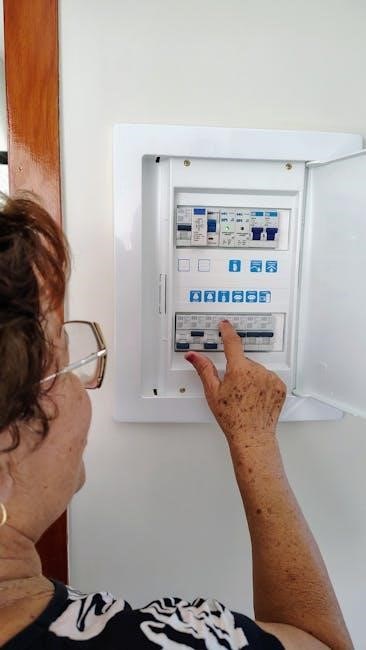
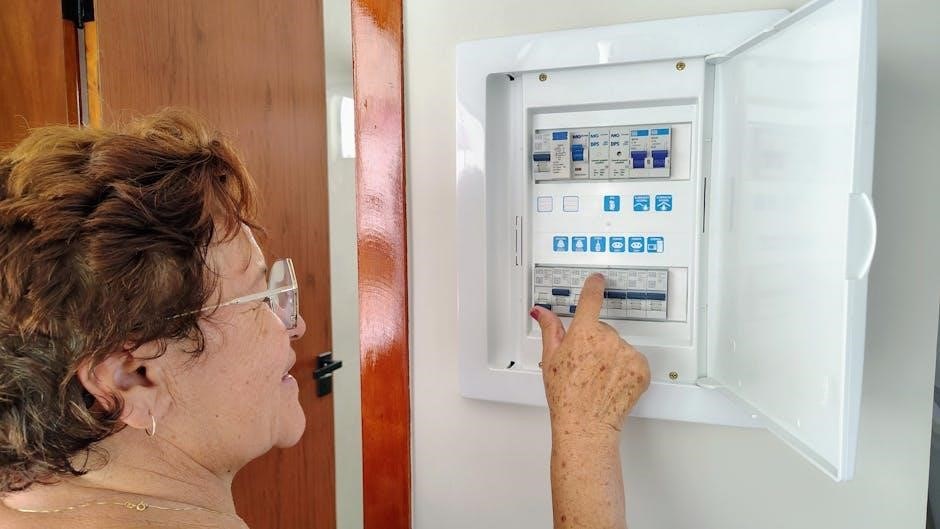
Electrical Connections and Requirements

Proper electrical connections are paramount for safe and efficient GE PTAC operation. Before commencing any electrical work, always disconnect power at the breaker to prevent electrical shock. GE PTAC units typically require dedicated electrical circuits, adhering to local and national electrical codes. Voltage and amperage requirements vary depending on the specific model; consult the unit’s technical specifications and service manual – like the AZ45E07DA series details – for precise information.

Ensure the wiring gauge is appropriate for the amperage draw to avoid overheating and potential fire hazards. Grounding the unit correctly is essential for safety. Incorrect wiring or inadequate electrical supply can damage the unit and void the warranty. If unsure, always engage a qualified electrician to perform the electrical connections and verify compliance with all applicable regulations.

Operation and Control

GE PTAC operation involves locating the mini manual, identifying the model/serial number, and utilizing cooling, heating, and fan modes for optimal comfort.

Mini Manual Location & Model/Serial Number Identification

Locating the mini manual is crucial for quick reference regarding GE PTAC operation and troubleshooting. According to available documentation, the mini manual is conveniently situated on the bottom of the unit’s pan, providing easily accessible guidance for users.

Identifying the model and serial number is equally important for accessing detailed information, service records, and compatible parts. These identifiers are essential when contacting customer support or ordering replacement components. The precise location of the model and serial number can be found on page 9 of relevant documentation, ensuring accurate identification for all AZ4500 and AZ6500 series units. Proper identification streamlines maintenance and repair processes, guaranteeing the longevity and efficient performance of your GE PTAC system.

Cooling, Heating, and Fan Modes

GE PTAC units offer versatile operation through distinct cooling, heating, and fan modes, catering to diverse climate control needs. In cooling mode, the compressor activates to remove heat from the room, providing refreshing relief during warmer periods. Conversely, heating mode utilizes reverse cycle heat pump technology – detailed in service documentation – to efficiently warm the space.

The fan mode circulates air without temperature alteration, ideal for ventilation and air distribution. Once the compressor engages in cooling for both AZ4500 and AZ6500 series, optimal performance is achieved. Understanding these modes allows users to customize their environment for maximum comfort and energy efficiency, ensuring the GE PTAC system operates effectively in any season.

Troubleshooting Common Issues

Common issues include error code F1, indicating room temperature sensor problems, and compressor diagnostics, requiring service or part replacement (PN WP76X21320).

Error Codes: F1 ⎻ Room Temperature Sensor Issues

The F1 error code on GE PTAC units signals a problem with the room temperature sensor, specifically an open or short-circuited condition. This disrupts the unit’s ability to accurately read the room’s temperature, impacting both cooling and heating performance. Troubleshooting begins with verifying the sensor’s wiring connections, ensuring they are secure and free from corrosion.

If connections are sound, the sensor itself must be tested for continuity using a multimeter. A lack of continuity confirms a faulty sensor requiring replacement. Proper sensor function is crucial for the PTAC’s control system to operate efficiently. Ignoring this error can lead to inconsistent temperatures, increased energy consumption, and potential damage to other components. Always disconnect power before inspecting or replacing the sensor, and refer to the technical service manual for specific model instructions.

Compressor Operation and Diagnostics

GE PTAC compressor diagnostics involve understanding its role in the cooling cycle and recognizing potential failure signs. Upon activation in cooling mode, the compressor should initiate within a reasonable timeframe. Unusual noises, such as clicking or humming without starting, indicate potential issues. Checking the electrical supply to the compressor is a primary diagnostic step, verifying correct voltage and amperage.

Further investigation includes assessing the compressor’s start and run capacitors, as well as the overload protector. A failed capacitor or protector will prevent the compressor from operating. If the compressor runs intermittently or fails to maintain adequate cooling, refrigerant levels should be checked. Always consult the technical service manual for specific troubleshooting procedures and safety precautions before working with the compressor or refrigerant system.

Service and Maintenance

Regular maintenance and service, including reverse cycle heat pump operation checks, are crucial for GE PTAC units; service parts like PN WP76X21320 are often needed.

Reverse Cycle Heat Pump Operation

GE PTAC units, particularly the 6100 Series, utilize a unique reverse cycle heat pump operation designed to deliver consistent and comfortable room temperatures. This system efficiently transfers heat, providing both cooling and heating capabilities within a single unit. Understanding this operation is vital for effective troubleshooting and maintenance.

The reverse cycle functionality allows the unit to extract heat from the outside air, even in cooler temperatures, and transfer it indoors for heating. Conversely, it removes heat from the indoor air and expels it outside for cooling. Proper operation relies on the integrity of components like the compressor, reversing valve, and various sensors.

When service is required to optimize heat pump performance, it’s essential to consult the technical manuals and adhere to GE’s recommended procedures. Ensuring the system operates correctly maximizes energy efficiency and extends the lifespan of the PTAC unit.

Ordering Service Parts (e.g., PN WP76X21320)

Maintaining a GE PTAC unit often requires replacing worn or damaged components. Accurate part identification is crucial for successful repairs. GE utilizes specific part numbers, such as PN WP76X21320, to ensure compatibility and proper functionality. This part number, and others, can be found within the detailed technical service manuals for specific GE Zoneline models.

When a Zoneline unit needs to operate solely as a PTAC or PTHP, ordering service part PN WP76X21320 is a necessary step. Always unplug the unit before installing any replacement parts. Reliable suppliers specializing in GE appliance parts are recommended to guarantee authenticity and quality.

Referencing the unit’s model and serial number when ordering parts is essential. Proper part selection prevents compatibility issues and ensures the PTAC system operates efficiently and safely. Detailed parts lists are available in the service documentation.

Technical Specifications

Technical details for GE PTAC units, like the AZ45E07DA series, are found in dedicated service manuals, outlining operation modes and compressor diagnostics.


AZ45E07DA Series Technical Service Manual Details

The GE AZ45E07DA Series Technical Service Manual is a crucial resource for technicians servicing this specific PTAC model; It provides in-depth information regarding component locations, wiring diagrams, and detailed troubleshooting procedures. This manual assists in diagnosing issues ranging from compressor malfunctions to sensor failures, ensuring efficient repairs.

Key sections cover electrical connections, refrigerant charging, and the interpretation of error codes – notably, the F1 code indicating room temperature sensor problems. The manual also details the reverse cycle heat pump operation, a core function of GE PTAC technology. Furthermore, it lists essential service parts, including part number WP76X21320, used for specific operational adjustments. Accessing this manual is vital for maintaining optimal performance and extending the lifespan of the AZ45E07DA unit.

PTAC vs. PTHP Operation Modes

GE Zoneline units offer flexibility in operation, functioning as either Packaged Terminal Air Conditioners (PTAC) or Packaged Terminal Heat Pumps (PTHP). Understanding the distinction is crucial for proper installation and troubleshooting. If exclusive PTAC or PTHP operation is required, a specific service part – PN WP76X21320 – must be ordered and installed.

This modification alters the unit’s functionality, locking it into the desired mode. The choice between PTAC and PTHP impacts heating efficiency; PTHPs utilize a reverse cycle heat pump for more energy-efficient heating compared to the electric resistance heating found in standard PTAC units. Technicians should verify the intended operation mode during service calls and ensure the correct configuration is maintained, referencing the technical manual for detailed instructions and compatibility information.

Resources and Documentation

Access GE Corometrics 170 service manuals, Amana PTAC catalogs, and GE Zoneline Generation III manuals online for comprehensive support and repair guidance.

GE Corometrics 170 Service Manual Information

The GE Corometrics 170 Service Manual is a substantial document, spanning 248 pages, offering detailed insights into the functionality and repair procedures for related GE equipment. While not directly focused solely on PTAC units, it provides valuable foundational knowledge applicable to understanding GE’s broader engineering principles and component designs. This resource is particularly useful for technicians familiar with GE’s product lines and seeking in-depth technical specifications.

Gujarat Technological University references this manual, highlighting its relevance within educational and professional contexts. Although primarily geared towards a different product category, the manual’s detailed schematics and troubleshooting guides can aid in diagnosing complex issues within GE PTAC systems. Accessing this documentation can supplement other PTAC-specific resources, offering a more holistic understanding of GE’s technological approach to climate control solutions.

Amana PTAC Catalog Availability

The Amana PTAC catalog, comprising 24 pages, serves as a crucial resource for understanding the range of packaged terminal air conditioning units offered by Amana, a brand often associated with GE in terms of technology and distribution networks. This catalog details specifications, features, and model variations, assisting in selecting the appropriate unit for specific applications. While a direct GE publication, its availability is pertinent when considering broader PTAC options.

Currently, the Amana PTAC catalog is available in PDF format, offering convenient access to product information. Plano, Texas, is noted as a location related to this catalog, potentially indicating a distribution or support center. Accessing this catalog alongside GE’s own documentation provides a comprehensive overview of the PTAC market, enabling informed decisions regarding purchase, installation, and maintenance of these essential climate control systems.

Manuals

dri eaz 1200 dehumidifier manual

Dri-Eaz 1200 Dehumidifier Manual: A Comprehensive Guide

This manual details the Dri-Eaz 1200 (Model F203-A) and similar 115-volt DrizAir units (2000, 2400).
It covers safety, operation, maintenance, and troubleshooting for optimal performance.

The Dri-Eaz 1200 DrizAir dehumidifier is a professional-grade unit designed for effective moisture removal in various restoration and maintenance applications. This model, along with its counterparts – the 2000 and 2400 – represents a reliable solution for water damage mitigation, flood control, and maintaining optimal humidity levels.

This dehumidifier utilizes a refrigerant-based system to efficiently extract moisture from the air. It’s engineered for durability and ease of use, making it a valuable asset for professionals and discerning homeowners alike. The 1200 model specifically is noted for its compact size and portability, while still delivering substantial dehumidification capacity.


This manual provides comprehensive instructions for safe operation, routine maintenance, and troubleshooting, ensuring the longevity and peak performance of your Dri-Eaz 1200.

Safety Precautions & Warnings

WARNING: To prevent fire and electric shock, always ensure the unit is properly electrically grounded. Never operate with a damaged power cord – inspect for fraying or cuts before each use. Unplug the dehumidifier before performing any maintenance or cleaning. Do not use extension cords.

This appliance is not intended for use by persons (including children) with reduced physical, sensory, or mental capabilities, or lack of experience and knowledge, unless supervised. Keep children and pets away during operation. Avoid operating in areas where flammable liquids or gases are present.

Electric Shock Hazard: Do not expose electrical components to water. If the unit gets wet, disconnect power immediately and consult a qualified technician. Always read and save these instructions for future reference.

Electrical Grounding Requirements

This Dri-Eaz 1200 dehumidifier must be electrically grounded to minimize the risk of electric shock. The unit is equipped with a three-prong plug that must be inserted directly into a matching, grounded outlet. Do not use adapter plugs or remove the grounding prong.

If a grounding outlet is unavailable, a qualified electrician should install one. Improper grounding can result in a hazardous voltage during an electrical fault. Ensure the electrical circuit is capable of handling the dehumidifier’s power requirements to avoid overheating and potential fire hazards.

Warning: Never defeat the purpose of the grounding plug. Regularly inspect the power cord and grounding connection for damage. Discontinue use if any damage is detected.

Unpacking and Initial Inspection

Upon receiving your Dri-Eaz 1200 dehumidifier, carefully unpack all components and verify that everything listed on the packing slip is present. Inspect the unit for any visible damage that may have occurred during shipping, such as dents, scratches, or broken parts.

Immediately report any damage to the carrier and Dri-Eaz Products, Inc. Before operating the unit, thoroughly inspect the power cord for fraying, cuts, or other signs of damage. Do not use the dehumidifier if the cord is compromised.

Carefully remove all packing materials from around and inside the unit, including any protective films or ties. Ensure the air inlet and outlet are clear of obstructions.

Component Identification

The Dri-Eaz 1200 dehumidifier consists of several key components essential for its operation. These include the robust housing, designed for durability, and the integrated carry handle for portability. Locate the water tank, crucial for collecting moisture, and understand its removal process for emptying.

Identify the control panel, which governs the unit’s settings, and the power cord with its three-prong plug – essential for proper electrical grounding. The unit utilizes a 3M High Air-Flow filter, vital for maintaining air quality and protecting internal components.

Familiarize yourself with the location of the air inlet and outlet, ensuring they remain unobstructed during operation; Understanding these components will aid in effective use and maintenance.

Power Cord Inspection

Prior to each use, a thorough inspection of the power cord is absolutely critical for safety. Carefully examine the entire length of the cord for any signs of damage, including fraying, cuts, or exposed wiring. Pay close attention to the connection points where the cord enters the unit and the plug itself.

A damaged power cord presents a serious electric shock hazard and must not be used. If any damage is detected, immediately discontinue use and do not attempt to repair the cord yourself. Contact a qualified technician or your local authorized distributor for replacement.

Always ensure the three-prong plug is intact and functioning correctly, as it’s vital for proper grounding.

Filter Location and Type (3M High Air-Flow)

The Dri-Eaz 1200 utilizes a 3M High Air-Flow filter, designed to efficiently capture dust and particulate matter, protecting internal components and maintaining optimal performance. This filter is strategically located within the unit to maximize airflow and filtration effectiveness.

Regular inspection and maintenance of the filter are crucial. A clean filter ensures proper dehumidification and prevents strain on the unit’s motor. Vacuuming the filter as needed will remove accumulated debris, extending its lifespan.

Always operate the dehumidifier with a clean filter installed. This simple step safeguards the internal components from dust buildup and contributes to the longevity of your Dri-Eaz 1200.

Operating Instructions

Before operating your Dri-Eaz 1200, ensure the unit is properly grounded and positioned in the desired location. Avoid obstructions around the air inlets and outlets for efficient airflow. Connect the unit to a grounded electrical outlet, verifying the voltage matches the specifications.

To power on, simply switch the unit on. The control panel allows for humidity level adjustments. Select your desired setting based on the room’s conditions and your specific needs. Monitor the water tank level regularly, as the unit will automatically shut off when full.

Consistent monitoring and adjustment will optimize performance.

Initial Setup and Placement

Upon unboxing your Dri-Eaz 1200, carefully inspect the unit for any shipping damage. Position the dehumidifier on a stable, level surface, ensuring adequate space around all sides – at least 12 inches – for optimal airflow. Avoid placing it near walls or furniture that could restrict ventilation.

The ideal placement is in a central location within the affected area. Ensure the power cord reaches a grounded electrical outlet without being stretched or a tripping hazard. Avoid areas with excessive dust or extreme temperatures. Proper placement maximizes dehumidification efficiency and protects the unit.

Powering On and Basic Operation

Before powering on, confirm the water tank is correctly positioned and empty. Plug the Dri-Eaz 1200 into a grounded 115-volt outlet. Press the power button to initiate operation; a light indicator will confirm activation. Initially, set the humidity control to a mid-range setting – around 50-60% – for general use.

The unit will automatically begin extracting moisture from the air. Monitor the humidity level using a hygrometer for precise control. Adjust the setting as needed to achieve the desired humidity. The dehumidifier will cycle on and off to maintain the selected humidity level, ensuring efficient and consistent performance.

Humidity Control Settings

The Dri-Eaz 1200 features adjustable humidity control, allowing precise moisture removal. Lower settings (e.g., 30-40%) are ideal for aggressive drying after water damage, while higher settings (50-60%) suit general moisture control. Continuously running the unit, bypassing humidity control, maximizes moisture extraction.

Experiment to find the optimal setting for your environment. Consider ambient temperature and humidity levels when adjusting. Lower temperatures require lower settings for effective dehumidification. Regularly monitor humidity with a separate hygrometer to verify the unit’s performance and fine-tune the control for desired results. Proper humidity control prevents over-drying and energy waste.

Maintenance and Filter Care

Regular maintenance ensures optimal performance and extends the life of your Dri-Eaz 1200 dehumidifier. Crucially, the 3M High Air-Flow filter requires periodic inspection and cleaning. A dirty filter restricts airflow, reducing dehumidification efficiency and potentially damaging internal components.

Vacuum the filter as needed to remove dust and debris. Avoid using water or detergents, as these can damage the filter material. Replace the filter according to the recommended schedule (see ‘Filter Replacement Schedule’). Internal component dust removal should be performed periodically, ensuring proper ventilation and preventing overheating. Consistent filter care is vital for reliable operation.

Filter Cleaning Procedures

To clean the Dri-Eaz 1200’s 3M High Air-Flow filter, begin by safely disconnecting the unit from the power source; Carefully remove the filter, noting its orientation for correct reinstallation. Utilize a vacuum cleaner with a brush attachment to gently remove accumulated dust and particulate matter.

Avoid applying excessive pressure, which could damage the filter media. Do not wash the filter with water or cleaning solutions, as this will compromise its effectiveness. Inspect the filter for any tears or damage; replace if necessary. A clean filter ensures optimal airflow and dehumidification performance. Reinstall the filter securely before resuming operation.

Filter Replacement Schedule

Maintaining a clean filter is crucial for the Dri-Eaz 1200’s efficiency. While regular cleaning extends filter life, eventual replacement is necessary. The recommended replacement schedule depends on operating conditions and dust exposure.

For typical use, replace the 3M High Air-Flow filter every 6-12 months. In dusty environments, or with frequent use, shorten this interval to 3-6 months. Reduced airflow or diminished dehumidification capacity are indicators of a clogged or degraded filter requiring immediate replacement. Always use a genuine Dri-Eaz replacement filter to ensure proper fit and performance. Consistent filter changes protect internal components and maintain optimal operation.

Internal Component Dust Removal

Periodically removing dust from internal components enhances the Dri-Eaz 1200’s longevity and performance. Before attempting this, always disconnect the unit from the power source to prevent electric shock. Use a vacuum cleaner with a brush attachment to gently remove dust accumulation from the coils and fan blades.

Avoid using water or solvents for cleaning internal parts. Focus on areas where dust visibly collects. This process should be performed annually, or more frequently in particularly dusty environments. Careful dust removal ensures efficient airflow and heat exchange, maintaining optimal dehumidification. Inspect wiring for damage during cleaning and address any concerns promptly.

Troubleshooting Common Issues

If the Dri-Eaz 1200 fails to power on, verify the power cord is securely connected to a grounded outlet. Check the circuit breaker or fuse box for tripped breakers or blown fuses. For insufficient dehumidification, ensure the air filter is clean and the room isn’t excessively large for the unit’s capacity.

Unusual noises often indicate a loose component or obstruction. Immediately disconnect power and inspect the fan blades for debris. If problems persist, contact authorized service personnel. Never attempt to disassemble or repair internal components yourself. Prioritize safety and consult the manual before any troubleshooting steps.

Unit Not Powering On

If your Dri-Eaz 1200 isn’t powering on, the first step is to confirm the unit is properly plugged into a functioning, grounded electrical outlet. Inspect the power cord meticulously for any signs of damage – fraying, cuts, or exposed wires – and do not operate if damage is found.

Next, check your circuit breaker or fuse box to ensure the circuit hasn’t tripped or the fuse hasn’t blown. Reset the breaker or replace the fuse if necessary. If the issue persists, contact a qualified electrician or authorized Dri-Eaz distributor for assistance. Never attempt to repair the unit yourself.

Insufficient Dehumidification

If the Dri-Eaz 1200 isn’t removing moisture effectively, several factors could be at play; First, verify the air filter is clean; a clogged filter restricts airflow, reducing dehumidification capacity. Regularly inspect and clean or replace the 3M High Air-Flow filter as needed.

Ensure the unit is appropriately sized for the space and that all doors and windows are closed to minimize outside air infiltration. Check the humidity control settings – a setting too low might not activate the compressor. Also, confirm the water tank isn’t full, as this will halt operation. If problems continue, consider ambient temperature and humidity levels.

Unusual Noises During Operation

Hearing strange sounds from your Dri-Eaz 1200 can indicate a few potential issues. A rattling noise might suggest something is loose within the unit, requiring inspection. Humming could be normal compressor operation, but excessive humming warrants attention. Clicking sounds may relate to the defrost cycle, which is a normal function.

If you detect grinding or scraping noises, immediately power off the dehumidifier. This could signify internal component damage. Ensure the unit is placed on a level surface to prevent vibrations. Regularly check for obstructions around the fan. If the noise persists after these checks, contact a qualified technician for repair or consult Dri-Eaz support.

Technical Specifications

The Dri-Eaz 1200 dehumidifier, along with the 2000 and 2400 models, operates on a standard 115-volt power supply. Specific voltage and amperage requirements are detailed on the unit’s nameplate; always verify compatibility before operation. This unit is designed for effective moisture removal in various environments.

Regarding performance, the 1200 boasts a substantial dehumidification capacity, capable of removing a significant amount of moisture per day. The water tank capacity allows for extended operation before needing emptying. Precise specifications vary slightly between models, so refer to the product label for exact figures. These specifications ensure efficient and reliable performance.

Voltage and Power Requirements

The Dri-Eaz 1200, alongside the 2000 and 2400 models, is specifically designed for use with a 115-volt electrical supply. It’s crucial to confirm your power source matches this requirement before connecting the unit to prevent damage or safety hazards. Always check the nameplate on the dehumidifier for precise amperage details.

Proper electrical grounding is essential for safe operation, as highlighted in the manual’s safety precautions. Utilizing a three-prong plug directly into a grounded outlet is mandatory. Avoid using extension cords if possible; if necessary, ensure they are heavy-duty and properly grounded. Failure to adhere to these guidelines could result in electric shock.

Dehumidification Capacity

The Dri-Eaz 1200 dehumidifier is engineered to effectively remove moisture from the air, making it suitable for various restoration and maintenance applications. While specific capacity varies based on temperature and humidity levels, it’s designed for moderate-sized spaces. The 2000 and 2400 models offer increased capacities for larger areas.

Understanding the unit’s capacity is vital for efficient operation. Factors like room size, ventilation, and initial humidity levels influence performance. Regularly monitoring humidity levels with a hygrometer helps determine if the unit is operating optimally. Proper airflow around the dehumidifier is also crucial for maximizing moisture removal.

Water Tank Capacity

The Dri-Eaz 1200 dehumidifier features an internal water tank designed to collect the moisture removed from the air during operation. While the exact capacity isn’t explicitly stated in readily available documentation, it’s sized to allow for extended run times before requiring emptying. Regularly checking and emptying the tank prevents automatic shut-off due to a full reservoir.

For continuous operation, a hose connection is available, allowing for direct drainage into a suitable drain. This eliminates the need for manual emptying and is ideal for long-term moisture removal projects. Always ensure the drain hose is properly secured to prevent leaks and maintain efficient operation of the unit.

Warranty Information

Dri-Eaz Products, Inc. provides a warranty on the DrizAir 1200 dehumidifier, protecting against manufacturing defects in materials and workmanship. Specific warranty terms, duration, and coverage details vary depending on the purchase date and region. It’s crucial to retain proof of purchase, such as the original receipt or invoice, to validate any warranty claims.

The warranty typically covers parts and labor for repairs performed by an authorized Dri-Eaz service center. Damage resulting from misuse, neglect, unauthorized modifications, or acts of nature is generally excluded. For complete warranty details, refer to the warranty card included with the unit or visit the Dri-Eaz website at www.dri-eaz.com.

Contacting Dri-Eaz Support

For assistance with your Dri-Eaz 1200 dehumidifier, several support options are available. The primary method is through the official Dri-Eaz website, www.dri-eaz.com, where you can find a comprehensive FAQ section, troubleshooting guides, and downloadable manuals. Direct contact can be made via phone during business hours to speak with a knowledgeable customer service representative.

Dri-Eaz Products, Inc. is located at 15180 Josh Wilson Road, Burlington, WA 98233, USA. Email support is also offered, providing a convenient way to submit inquiries and receive detailed responses. When contacting support, have your unit’s model number (F203-A) and serial number readily available to expedite the process and ensure accurate assistance.

Dri-Eaz 1200 vs. Other Models (2000, 2400)

The Dri-Eaz 1200, 2000, and 2400 are all 115-volt DrizAir dehumidifiers, sharing core functionality but differing in dehumidification capacity. The 1200 is suited for smaller spaces and quicker moisture removal, while the 2000 and 2400 are designed for larger areas and more substantial water damage restoration. Generally, higher numbers indicate greater performance.

All three models utilize similar operating principles and share common components, like the 3M High Air-Flow filter, simplifying maintenance across the range. However, the 2000 and 2400 models typically feature larger water tank capacities and potentially more robust construction for heavier-duty use. Choosing the right model depends on the scale of the dehumidification task.

Understanding the Control Panel

The Dri-Eaz 1200’s control panel is designed for intuitive operation, allowing users to easily manage humidity levels. While specific layouts may vary slightly between models (1200, 2000, 2400), core functions remain consistent. Typically, a power switch initiates operation, and humidity control settings allow adjustment of the desired moisture level.

Some models feature a simple dial or digital display for humidity selection, while others may include indicators for operational status, such as power on or tank full. Understanding these controls is crucial for efficient dehumidification. Refer to the detailed diagrams within this manual for precise component locations and function explanations. Proper use ensures optimal performance and extends the unit’s lifespan.

Proper Storage Procedures

To ensure the longevity of your Dri-Eaz 1200 dehumidifier (and other DrizAir models like 2000 & 2400), proper storage is essential when not in use. Before storing, thoroughly drain the water tank to prevent mold and bacterial growth. Clean the filter as outlined in the maintenance section of this manual.

Coil the power cord neatly and secure it to prevent damage. Store the unit in a clean, dry, and well-ventilated area, protected from extreme temperatures and direct sunlight. Covering the unit with a breathable cloth can help prevent dust accumulation. Regularly inspect the stored dehumidifier for any signs of damage or deterioration.

Disposal Considerations

Responsible disposal of your Dri-Eaz 1200 dehumidifier (and other DrizAir models) is crucial for environmental protection. Do not simply discard the unit with regular household waste. This appliance contains refrigerants and other components requiring specialized handling.

Contact your local waste management authority to determine appropriate disposal methods in your area. Many communities offer electronic waste (e-waste) recycling programs. Alternatively, Dri-Eaz Products, Inc. may offer take-back or recycling options – check their website (www.dri-eaz.com) for details. Ensure all refrigerants are properly recovered by a certified technician before disposal. Following these guidelines helps minimize environmental impact.

Manuals

2022 ram 1500 owners manual

The 2022 Ram 1500 owner’s manual is a vital resource, offering comprehensive guidance on vehicle operation, maintenance, and safety features for all drivers.

Overview of the Vehicle

The 2022 Ram 1500 represents a powerful blend of capability, comfort, and technology within the full-size truck segment. This overview, drawn from the owner’s manual, highlights key aspects. Available with various engine options – including V6 and V8 configurations – it caters to diverse needs, boasting towing capacities up to 12,750 pounds and maximum payloads exceeding 2,300 pounds.

The manual details trim levels like SLT, offering 4×4 traction and an 8-speed automatic transmission. It emphasizes advanced features such as the Uconnect infotainment system and various driver-assistance technologies. Understanding the vehicle’s specifications, as outlined in the owner’s manual, is crucial for maximizing performance and ensuring safe operation. The manual also provides essential information regarding maintenance schedules and fluid checks.

Importance of the Owner’s Manual

The 2022 Ram 1500 owner’s manual is far more than just a guide; it’s a critical component of vehicle ownership. It provides detailed instructions on operating all systems, from the Uconnect infotainment to advanced driver-assistance features. Understanding the manual ensures safe and efficient vehicle use, preventing potential damage or accidents.

The manual details maintenance schedules, fluid checks, and troubleshooting tips, helping owners maintain peak performance and longevity. It also explains the vehicle’s capabilities, including towing capacity and payload information. Accessing a free PDF version, as available online, allows for convenient reference. Ignoring the owner’s manual can lead to costly repairs and void warranty coverage, making it an indispensable resource for every Ram 1500 owner.

Understanding Your Vehicle

The 2022 Ram 1500 owner’s manual details the VIN location, key features, dashboard symbols, and specifications, enabling comprehensive vehicle familiarity.

Vehicle Identification Number (VIN) Location

Locating your 2022 Ram 1500’s Vehicle Identification Number (VIN) is crucial for various reasons, including warranty claims, theft recovery, and vehicle history reports. The owner’s manual provides specific details, but generally, you can find the VIN in several places.

Firstly, it’s located on a label affixed to the driver’s side dashboard, visible through the windshield. Additionally, the VIN is stamped on the vehicle’s frame, often on the driver’s side near the doorjamb. It may also appear on your vehicle registration and insurance documents.

The 17-character VIN uniquely identifies your specific vehicle, providing valuable information about its manufacturing details and specifications. Refer to your owner’s manual for the precise location and decoding information for your 2022 Ram 1500 model.

Key Features and Specifications

The 2022 Ram 1500 boasts a range of impressive features and specifications, detailed within the owner’s manual. Engine options include a 3.6L V6 with eTorque, a 5.7L V8 with or without eTorque, and a powerful 3.0L EcoDiesel V6.

Transmission choices feature an eight-speed automatic, optimized for performance and efficiency. Available 4×4 systems enhance off-road capability, while various trim levels – like SLT, Laramie, and Limited – offer differing levels of luxury and technology.

Maximum towing capacity reaches up to 12,750 pounds, and payload capacity can exceed 2,300 pounds, depending on configuration. The Uconnect infotainment system, advanced safety features, and spacious cabin contribute to a premium driving experience. Consult your manual for precise details related to your specific vehicle.

Dashboard Symbols and Indicators

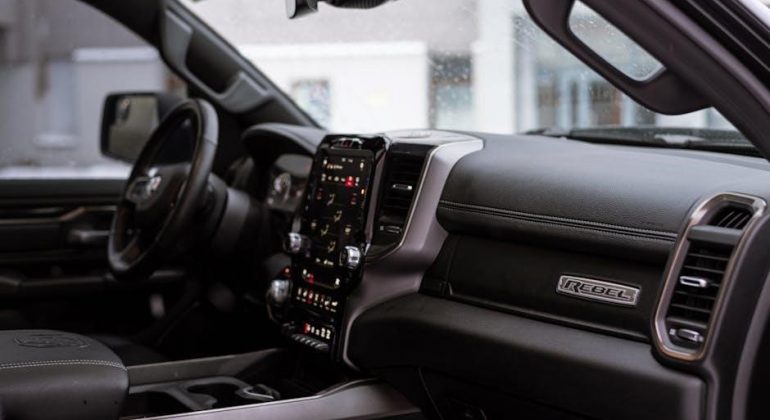
The 2022 Ram 1500’s dashboard displays a variety of symbols and indicators, thoroughly explained in the owner’s manual. Understanding these alerts is crucial for safe operation. Warning lights signal potential issues – check engine, oil pressure, battery voltage, and brake system malfunctions require immediate attention.

Informational icons communicate system status, such as headlight activation, turn signal operation, and cruise control engagement. The manual details the specific meaning of each symbol, including those related to the 4×4 system, traction control, and airbag functionality.

Pay close attention to illuminated symbols and refer to the manual for recommended actions. Ignoring warning lights can lead to more significant vehicle damage or safety hazards. Familiarize yourself with these indicators for a confident driving experience.

Operating Your Vehicle

The 2022 Ram 1500 owner’s manual details essential operating procedures, including starting, stopping, driving modes (4×4, Eco), and proper transmission usage for optimal performance.

Starting and Stopping the Engine

The 2022 Ram 1500 owner’s manual provides detailed instructions for safely starting and stopping the engine. Before starting, ensure the vehicle is in Park or Neutral, the parking brake is engaged, and the brake pedal is fully depressed. The manual clarifies the ignition sequence – typically a keyless entry with push-button start or a traditional key ignition.

It also outlines procedures for cold-weather starting, emphasizing the importance of allowing the engine to warm up before driving. Regarding shutdown, the manual stresses parking on a level surface, applying the parking brake, and shifting into Park before turning off the engine. It also cautions against prolonged idling and provides guidance on what to do if the engine fails to start.

Driving Modes and Systems (4×4, Eco Mode, etc.)

The 2022 Ram 1500 owner’s manual thoroughly explains the vehicle’s diverse driving modes and systems. It details the functionality of the 4×4 system, including options for 4-High, 4-Low, and automatic operation, advising on appropriate usage for various terrains. The manual clarifies the Eco Mode, designed to optimize fuel efficiency by adjusting throttle response and shift patterns.

Further explanations cover available systems like Sport Mode for enhanced performance, and Snow/Mud mode for improved traction in challenging conditions. The manual emphasizes understanding each mode’s impact on vehicle handling and fuel economy, ensuring drivers can select the optimal setting for their current driving needs and environmental conditions.

Transmission Operation

The 2022 Ram 1500 owner’s manual provides detailed instructions on transmission operation, covering both automatic and, if equipped, manual transmission variants. For automatic transmissions, it explains the gear selector positions – Park, Reverse, Neutral, Drive, and any manual shift modes available. The manual clarifies the function of features like the AutoStick selector, allowing drivers to manually control gear changes.

It also details how the transmission adapts to driving conditions and provides guidance on proper shifting techniques for optimal performance and longevity. Information on transmission fluid checks and maintenance is included, alongside warnings about potential issues and troubleshooting tips, ensuring drivers understand their transmission’s operation.

Maintenance and Service

The 2022 Ram 1500 owner’s manual details a recommended maintenance schedule, covering fluid checks, replacements, and essential service intervals for optimal performance.

Recommended Maintenance Schedule

The 2022 Ram 1500 owner’s manual provides a detailed, structured maintenance schedule crucial for preserving vehicle reliability and longevity. This schedule outlines specific inspection and service intervals based on mileage or time, whichever comes first.

Regular checks include fluid level inspections (oil, coolant, brake fluid, power steering fluid, and windshield washer fluid), tire rotations, and visual inspections of belts, hoses, and brakes. More extensive services, like oil and filter changes, are scheduled at defined intervals, typically ranging from 7,500 to 10,000 miles depending on driving conditions and oil type.

The manual also highlights the importance of periodic inspections of the exhaust system, steering and suspension components, and electrical systems. Following this schedule diligently ensures optimal performance, safety, and helps maintain the vehicle’s resale value. Adhering to the recommended intervals is key to avoiding costly repairs down the road.

Fluid Checks and Replacements (Oil, Coolant, etc.)

The 2022 Ram 1500 owner’s manual emphasizes the critical role of maintaining proper fluid levels for optimal engine and component function. Regular checks of engine oil are paramount, with recommended replacement intervals varying based on oil type and driving conditions – typically between 7,500 and 10,000 miles.

Coolant levels should be inspected periodically, ensuring the correct mixture to prevent overheating or freezing. Brake fluid, power steering fluid, and transmission fluid also require periodic checks and eventual replacement, as outlined in the manual’s maintenance schedule.

The manual details the specific types of fluids recommended for your Ram 1500, preventing damage from incompatible products. Proper fluid maintenance safeguards against wear, corrosion, and potential system failures, contributing to long-term vehicle reliability and performance.

Tire Information and Maintenance

The 2022 Ram 1500 owner’s manual provides detailed guidance on tire care, crucial for safety and longevity. It specifies the correct tire size and pressure for your vehicle, impacting handling, fuel efficiency, and wear patterns. Regular tire pressure checks – ideally monthly and before long trips – are strongly advised.

The manual outlines proper tire rotation procedures to ensure even wear, extending tire life. It also details how to inspect tires for damage, such as cuts, bulges, or uneven tread depth. Understanding load capacity is vital, preventing overloading which compromises safety.

Information on tire replacement, including speed ratings and treadwear indicators, is included. Following these guidelines ensures optimal performance and minimizes the risk of tire-related incidents, contributing to a safer driving experience.

Safety Features

The 2022 Ram 1500 owner’s manual details crucial safety systems like airbags, ADAS, emergency braking, and stability control for driver and passenger protection.

Airbag System

The 2022 Ram 1500 owner’s manual provides detailed information regarding the vehicle’s airbag system, a critical component of its safety features. It explains the various types of airbags – frontal, side curtain, and seat-mounted – and their specific deployment characteristics. Understanding how and when these airbags activate is paramount for occupant safety during a collision.

The manual emphasizes the importance of always wearing seatbelts in conjunction with the airbag system, as they work together to maximize protection. It also outlines potential risks associated with airbag deployment, particularly for children, and stresses the need to follow all safety precautions. Diagrams within the manual illustrate the location of each airbag and provide warnings about modifications that could affect system performance. Proper maintenance and awareness, as detailed in the manual, are key to ensuring the airbag system functions correctly.

Advanced Driver-Assistance Systems (ADAS)

The 2022 Ram 1500 owner’s manual dedicates significant coverage to its suite of Advanced Driver-Assistance Systems (ADAS). These technologies, designed to enhance safety and convenience, include features like Adaptive Cruise Control, Lane Departure Warning, and Automatic Emergency Braking. The manual thoroughly explains the operational parameters of each system, emphasizing that they are assistive and do not replace attentive driving.

Detailed descriptions clarify how each ADAS function interprets driving conditions and responds accordingly. It stresses the importance of understanding system limitations, such as performance in adverse weather or with faded lane markings; The manual also provides instructions on activating, deactivating, and customizing these features. Proper understanding, as outlined in the manual, is crucial for maximizing the benefits and avoiding unintended consequences when utilizing these advanced technologies.

Emergency Braking and Stability Control

The 2022 Ram 1500 owner’s manual provides extensive details regarding the vehicle’s Emergency Braking System (EBS) and Electronic Stability Control (ESC). The manual explains how EBS automatically applies the brakes to mitigate or avoid collisions, detailing scenarios where it activates and its operational limitations. ESC is described as a system that helps maintain directional control during challenging maneuvers, preventing skidding.

The manual emphasizes that these systems are supplementary and don’t eliminate the need for careful driving. It clarifies indicator lights and audible warnings associated with EBS and ESC activation. Instructions cover how to temporarily disable ESC under specific conditions (like freeing a stuck vehicle) and the importance of re-enabling it afterward. Understanding these systems, as detailed in the manual, is vital for safe operation.

Capability and Towing

The 2022 Ram 1500 owner’s manual details towing capacity charts, payload information, and the Trailer Sway Control System for safe hauling.

Towing Capacity Charts

The 2022 Ram 1500 owner’s manual provides detailed towing capacity charts crucial for safe and legal towing operations. These charts aren’t simply single numbers; they vary significantly based on several key factors. Engine choice – whether a V6 or V8 – dramatically impacts the maximum trailer weight.

Furthermore, axle ratio, drivetrain (4×2 or 4×4), and even the specific trim level all play a role. The manual clearly outlines how to interpret these charts, emphasizing the importance of not exceeding the stated limits. It also explains how to determine the Gross Vehicle Weight Rating (GVWR) and Gross Combined Weight Rating (GCWR) to ensure proper weight distribution and vehicle stability. Ignoring these guidelines can lead to dangerous driving conditions and potential damage to the vehicle.

Payload Capacity Information

The 2022 Ram 1500 owner’s manual dedicates a section to payload capacity, a critical aspect of safe vehicle operation often overlooked. Payload refers to the combined weight of passengers, cargo, and any accessories added to the truck bed. Like towing capacity, payload isn’t a fixed value.

It’s determined by factors like engine type, axle ratio, and cab configuration. The manual provides specific payload charts for each configuration, detailing the maximum allowable weight. Exceeding the payload capacity can compromise handling, braking performance, and tire integrity. The manual stresses the importance of calculating total payload weight before each trip and adhering to the specified limits for optimal safety and vehicle longevity.

Trailer Sway Control System

The 2022 Ram 1500 owner’s manual thoroughly explains the Trailer Sway Control (TSC) system, a crucial safety feature when towing. TSC is designed to detect and mitigate trailer sway, a potentially dangerous situation where the trailer begins to oscillate side-to-side. The system works by selectively applying brakes to individual wheels to counteract the sway and help maintain vehicle stability.

The manual details how TSC operates, including indicator lights on the dashboard that signal system activation. It also provides guidance on proper trailer loading and weight distribution to minimize the risk of sway. Drivers are advised not to override the system and to understand its limitations, especially in extreme conditions.

Interior Features

The 2022 Ram 1500 owner’s manual details the Uconnect system, climate controls, and diverse seating/storage options, enhancing the driving experience.

Uconnect System and Infotainment

The 2022 Ram 1500 owner’s manual provides a detailed exploration of the Uconnect system, your central hub for infotainment. It covers touchscreen navigation, smartphone integration via Apple CarPlay and Android Auto, and Bluetooth connectivity for hands-free calling and audio streaming. Learn how to customize your display, access vehicle settings, and utilize voice commands for a safer driving experience.

The manual explains the various Uconnect features, including navigation system operation, SiriusXM satellite radio, and available premium audio systems. Troubleshooting tips are included for common issues, ensuring seamless operation. Discover how to update the system software to maintain optimal performance and access the latest features. Understanding these functionalities will maximize your enjoyment and connectivity while on the road.

Climate Control System

The 2022 Ram 1500 owner’s manual offers a comprehensive guide to the vehicle’s climate control system. It details operation of the manual and automatic temperature controls, allowing you to maintain optimal comfort in any weather. Learn about the dual-zone climate control feature, enabling independent temperature settings for driver and passenger. The manual explains how to use the defrost and defog functions for clear visibility.

Detailed instructions cover air recirculation, air filtration system maintenance, and troubleshooting common issues. Discover how to adjust fan speed, vent selection, and temperature settings for personalized comfort. The manual also explains the operation of heated and ventilated seats, enhancing comfort during extreme temperatures. Proper understanding ensures efficient climate control and a pleasant driving experience.

Seating and Storage Options

The 2022 Ram 1500 owner’s manual thoroughly explains the various seating configurations available, including bench and bucket seat options, and how to adjust them for optimal comfort and support. It details the operation of power-adjustable seats, including lumbar support and memory settings. Learn about the available premium materials and features like heated and ventilated seats.

The manual also provides a detailed overview of the truck’s ample storage solutions. Discover the location and capacity of the glove compartment, center console, door pockets, and under-seat storage. Instructions cover the use of the available fold-flat load floor and other innovative storage features. Understanding these options maximizes space and convenience for passengers and cargo.


Manuals

g56 manual transmission

The G56‚ known for its robust design and use in heavy-duty applications‚ is a popular manual transmission. It’s notably louder than other Dodge transmissions‚ and often experiences gear rattle.

Overview of the G56


The G56 is a heavy-duty‚ six-speed manual transmission primarily found in Dodge and Ram trucks‚ particularly those with Cummins diesel engines. Characterized by its durable cast-iron case‚ it was designed to handle significant torque. However‚ it’s recognized for being louder in operation compared to other transmissions. Common issues include gear rattle‚ especially in fifth gear‚ and potential pilot bearing failures. Despite these concerns‚ the G56 remains a popular choice for those needing a robust transmission for demanding applications.

Historical Context and Applications

The G56 transmission emerged as a strong solution for heavy-duty truck applications‚ gaining prominence in the early 2000s with Dodge Ram pickups equipped with Cummins diesel engines. It replaced earlier transmission models‚ offering increased strength and a six-speed configuration. Its applications centered around vehicles requiring substantial torque handling capabilities‚ like towing and hauling. Over time‚ it became a favored choice for diesel enthusiasts and those needing a reliable manual transmission.

Technical Specifications of the G56

The G56 is a heavy-duty‚ cast-iron transmission featuring six speeds. It requires specific fluid types and capacities for optimal performance and longevity‚ crucial for its operation.

Gear Ratios and Configurations

The G56 transmission commonly features gear ratios designed for torque management in diesel applications. Specific ratios vary depending on the vehicle and intended use‚ but generally prioritize low-end power. Configurations include both wide and close-ratio versions‚ impacting acceleration and fuel economy. Understanding these ratios is vital for matching the transmission to engine characteristics and driving needs‚ ensuring optimal performance and efficiency. Variations exist to suit different truck models and performance goals.

Dimensions and Weight

The G56 transmission is characterized by its substantial size and weight‚ reflecting its heavy-duty construction. It’s an extremely heavy‚ cast-iron case unit‚ contributing to its durability but also increasing overall vehicle weight. Precise dimensions vary slightly based on specific configurations‚ but it’s significantly larger than many lighter-duty transmissions. This robust build impacts installation and requires appropriate mounting solutions‚ demanding careful consideration during any modification or repair work.

Fluid Type and Capacity

The G56 transmission typically requires Automatic Transmission Fluid (ATF)‚ though specific recommendations can vary. A common issue is ATF overheating‚ leading to cooler and heat exchanger clogging. Maintaining proper fluid levels is crucial for smooth operation and longevity. Fluid capacity differs based on the specific G56 variant‚ but regular checks and timely fluid changes are essential preventative maintenance. Ignoring this can lead to significant internal damage and costly repairs.

Common Problems and Troubleshooting

G56 transmissions frequently exhibit gear rattle‚ pilot bearing failure‚ and leaks through the vent. Overheating ATF and worn bearing retainers are also common issues needing attention.

Gear Rattle – A Frequent Issue

Gear rattle is a widely reported problem with the G56 transmission‚ particularly affecting owners of 05 and newer Turbo Diesels. This noise often manifests as a clunky vibration when idling‚ ceasing when the clutch pedal is depressed. While the G56 is inherently louder than other transmissions‚ excessive rattle indicates potential internal wear. Adding more fluid may temporarily reduce the noise‚ but doesn’t address the root cause. Members have documented this issue extensively in online forums‚ suggesting a need for inspection and potential component replacement to resolve the persistent rattle.

Pilot Bearing Failure

Pilot bearing failure is a historically common issue with the G56 and its predecessor‚ the NV5600. This extremely heavy-duty transmission places significant stress on the pilot bearing‚ located where the input shaft enters the engine. Prolonged use and heavy loads can lead to premature wear and eventual failure. Symptoms include difficulty shifting‚ especially into gear‚ and potentially a complete inability to engage gears. Replacement is crucial to prevent further damage to the transmission and engine components‚ requiring disassembly and careful installation.

Worn Bearing Retainer

A worn bearing retainer frequently causes shifting problems within the G56 transmission. This component‚ supporting the throw-out bearing‚ experiences wear over time‚ leading to insufficient clutch disengagement. Owners report the transmission becoming harder to shift as the clutch doesn’t fully release. Replacing the worn retainer often resolves these issues‚ restoring proper clutch function and smooth gear changes. It’s a relatively common repair‚ frequently identified when addressing clutch disengagement complaints.

ATF Overheating and Cooler Issues

ATF overheating is a prevalent problem in the G56 transmission‚ often stemming from a clogged radiator or heat exchanger. This leads to degraded fluid performance and potential internal damage. Symptoms include sluggish shifting and‚ in severe cases‚ transmission failure. Regular inspection and maintenance of the cooling system are crucial. Addressing this issue often involves flushing the system and replacing or cleaning the cooler to maintain optimal operating temperatures and prevent further complications.

Leaking Through the Vent

Fluid leakage through the G56 transmission’s vent is a commonly reported issue‚ often indicating internal pressure buildup or worn seals. This isn’t necessarily a catastrophic failure‚ but it signals a need for investigation. Potential causes include worn synchronizers‚ damaged seals‚ or excessive internal wear. Ignoring this leak can lead to reduced fluid levels‚ impacting performance and potentially causing significant damage. Prompt diagnosis and repair are essential to prevent further complications and maintain transmission integrity.

Identifying G56 Transmission Issues

Recognizing problems involves listening for unusual noises‚ noting clutch disengagement difficulties‚ and observing any challenges experienced while attempting to shift gears smoothly.

Recognizing Unusual Noises

G56 transmissions are often louder than others‚ but specific sounds indicate issues. A frequent complaint is gear rattle‚ particularly noticeable in 5th gear‚ sometimes extremely loud. Vibrating or clunky noises when idling‚ stopping with the clutch out‚ are red flags.

Grinding or crunching sounds during shifts‚ especially 2nd or 3rd‚ suggest worn or damaged gears. Any new or worsening noises warrant immediate investigation to prevent further damage.

Clutch Disengagement Problems

Difficulty fully disengaging the clutch is a common symptom linked to the G56. If the clutch doesn’t fully release‚ shifting becomes difficult‚ and the transmission may make noises when the pedal is pressed. A worn bearing retainer is often the culprit‚ preventing complete separation.

This incomplete disengagement can also cause grinding during shifts and premature wear on clutch components. Addressing this promptly is crucial to avoid further transmission damage.

Shifting Difficulties

Experiencing trouble getting the G56 into gear‚ particularly second or third‚ is frequently reported. This can manifest as grinding‚ a reluctance to move the shifter‚ or a generally notchy feel. Internal wear‚ like chipped gear teeth or a failing synchronizer‚ often contributes to these issues.

Proper fluid levels and type are essential‚ but significant shifting problems usually indicate internal component damage requiring professional attention.

Repair and Maintenance Procedures

Regular fluid changes are crucial for G56 longevity. Pilot bearing and bearing retainer replacements address common failure points‚ while gear inspection ensures smooth operation.

Fluid Change Procedure

Performing a G56 fluid change requires specific attention. Begin by warming the transmission‚ then carefully remove the fill plug. Drain the old fluid completely‚ noting its condition for potential issues like metal shavings. Replace the drain plug with a new seal.

Next‚ use the correct fluid type and fill to the specified capacity‚ typically through the fill plug until it begins to overflow. Reinstall the fill plug securely. Regularly checking fluid levels is vital for optimal performance and preventing overheating.

Pilot Bearing Replacement

G56 transmissions are prone to pilot bearing failure‚ a common issue requiring attention. Accessing the pilot bearing often necessitates transmission removal. Utilize a pilot bearing puller to safely extract the old bearing without damaging the crankshaft.

Thoroughly clean the bore before installing a new‚ high-quality pilot bearing‚ ensuring proper lubrication during installation. Incorrect installation can lead to premature failure and shifting problems‚ so precision is key.

Bearing Retainer Replacement

A worn bearing retainer within the G56 transmission frequently causes shifting difficulties‚ as it impacts proper clutch disengagement. Replacing this component often resolves issues where the clutch doesn’t fully release. Access requires transmission disassembly‚ demanding mechanical expertise.

Inspect the retainer for wear or damage before replacement. Ensure the new retainer is correctly seated and secured to prevent future clutch engagement problems and maintain smooth gear changes.

Gear Inspection and Replacement

Thorough gear inspection is crucial during G56 transmission repair‚ particularly for 2nd and 3rd gears‚ known for potential wear and tooth damage. Look for chipped‚ cracked‚ or excessively worn teeth. Replacing damaged gears requires complete transmission disassembly and specialized tools.

Ensure proper gear mesh and lubrication upon reassembly. Incorrect installation can lead to noise‚ vibration‚ and premature failure‚ impacting overall transmission performance.

G56 vs. NV5600 – Key Differences

The G56 and NV5600 differ in design and construction; the NV5600‚ with its cast-iron case‚ frequently suffered pilot bearing failures‚ a common issue.

Design and Construction

The G56 is characterized by its exceptionally heavy-duty‚ cast-iron case‚ built to withstand the demands of powerful diesel engines. Compared to the NV5600‚ it represents an evolution in design aimed at improving durability. However‚ both transmissions share a similar overall layout with synchronized gears and a robust internal structure. The G56’s construction focuses on handling increased torque‚ making it suitable for demanding applications like Ram pickup trucks. This robust build contributes to its overall weight and distinct operational characteristics.

Reliability Comparison

Compared to the NV5600‚ the G56 generally exhibits improved reliability‚ though both are known for potential issues. A frequent failure point in the NV5600 was the pilot bearing‚ a problem addressed in the G56’s design. However‚ the G56 is prone to gear rattle and ATF overheating‚ requiring diligent maintenance. Overall‚ the G56’s robust construction contributes to a longer lifespan when properly maintained‚ but specific issues still demand attention from owners.

Performance Characteristics

The G56 delivers a robust and capable performance‚ particularly suited for high-torque applications like diesel engines. While known for its durability‚ it’s also characterized by a heavier feel during shifting compared to some other transmissions. The 5th gear can be notably loud‚ a common trait‚ but doesn’t necessarily indicate a problem. Its strong construction ensures reliable power transfer‚ making it a favorite for demanding tasks and heavy loads.

Upgrading and Modification Options

Several upgrades exist for the G56‚ including improved shift linkages and internal component enhancements. Aftermarket support provides options for increased durability and performance.

Shift Linkage Improvements

Addressing the factory shift linkage is a common G56 upgrade. Many owners report imprecise shifting feel‚ benefiting from aftermarket solutions designed to reduce slop and improve engagement. These modifications often involve replacing worn components or installing entirely new linkage systems. Improved linkages contribute to quicker‚ more direct shifts‚ enhancing the driving experience and potentially reducing stress on internal transmission parts. Precise shifting is crucial for maximizing the G56’s potential and minimizing wear.

Internal Component Upgrades

For heavily modified or high-horsepower applications‚ internal G56 upgrades are essential. These commonly include stronger gear sets to withstand increased torque‚ and upgraded bearings for improved durability. Addressing the pilot bearing is frequently recommended‚ given its history of failure. Some opt for cryo-treatment of gears for enhanced strength. These internal enhancements significantly increase the transmission’s lifespan and reliability when subjected to demanding conditions‚ preventing catastrophic failures.

Aftermarket Support

The G56 enjoys substantial aftermarket support‚ offering a wide range of parts and services. Online forums and communities provide valuable troubleshooting advice and shared experiences. Numerous suppliers specialize in G56 components‚ including rebuild kits‚ individual gears‚ and upgraded bearings. Repair manuals and detailed documentation are also readily available‚ aiding both DIY mechanics and professional shops. This robust support network ensures the longevity and continued usability of this durable transmission.

Diagnostic Tools for the G56

Effective diagnosis relies on scan tools for codes‚ pressure testing to identify leaks‚ and thorough visual inspections for wear or damage to internal components.

Scan Tools and Codes

While the G56 is a mechanical transmission‚ modern vehicles equipped with it may still generate diagnostic trouble codes (DTCs) related to associated systems. Scan tools can retrieve these codes‚ offering clues about sensor malfunctions or communication issues impacting transmission performance. However‚ direct transmission-specific codes are rare. Focus on codes related to the clutch‚ speed sensors‚ and the vehicle’s control modules. Interpreting these codes requires understanding their connection to the G56’s operation‚ aiding in pinpointing potential problems beyond the transmission itself.

Pressure Testing

Pressure testing the G56 transmission‚ though challenging due to its design‚ can reveal internal leakage points. Specialized adapters are needed to access test ports‚ if available. Monitoring pressure at various points during operation helps identify worn seals or damaged components. Low pressure indicates internal losses‚ potentially stemming from the front seal‚ rear seal‚ or internal bearings. This test requires expertise and caution‚ as improper procedures can damage the transmission; professional assistance is often recommended.

Visual Inspection Techniques

A thorough visual inspection of the G56 transmission begins externally‚ checking for fluid leaks around the case‚ vent‚ and seals. Internally‚ inspect gear teeth for wear‚ pitting‚ or breakage‚ paying close attention to the frequently problematic 4th gear. Examine bearing surfaces for discoloration or spalling. Look for metal shavings in the fluid‚ indicating internal component failure. Careful observation can reveal early signs of trouble before they escalate into major issues.

The Role of Clutch Components

Clutch function is critical for smooth G56 operation; worn discs or a failing pressure plate can cause incomplete disengagement‚ leading to shifting difficulties.

Clutch Disc Wear

Clutch disc wear directly impacts the G56’s performance. As the friction material diminishes‚ the clutch struggles to fully engage or disengage‚ manifesting as slipping or difficulty selecting gears. This incomplete disengagement is a frequent cause of the transmission feeling harder to shift. Regular inspection is crucial‚ as a worn disc can also accelerate wear on other components like the pressure plate and flywheel‚ ultimately leading to more extensive and costly repairs; Monitoring clutch feel and responsiveness is key to preventative maintenance.

Pressure Plate Function

The pressure plate in a G56 transmission system exerts consistent force against the clutch disc and flywheel‚ facilitating engagement and power transfer. Its springs maintain this clamping pressure‚ vital for smooth operation. A failing pressure plate can cause inconsistent clutch engagement‚ shuddering‚ or complete clutch failure. Inspecting the pressure plate alongside the clutch disc is essential‚ as wear or damage can compromise the entire clutch assembly and negatively impact shifting performance within the G56.

Throw-Out Bearing Issues

The throw-out bearing‚ also known as the release bearing‚ is crucial for disengaging the clutch in a G56 transmission. A failing throw-out bearing often manifests as noise when the clutch pedal is pressed. Common symptoms include squealing‚ grinding‚ or a constant rumbling sound. Worn bearings can prevent full clutch disengagement‚ leading to shifting difficulties and potential damage to other transmission components. Regular inspection and timely replacement are vital for smooth G56 operation.

Understanding the 5th Gear Noise

The G56’s 5th gear is often excessively loud‚ a common complaint among owners. Adding more transmission fluid is sometimes a temporary solution to this issue.

Causes of the Loud 5th Gear

Several factors contribute to the notorious 5th gear noise in the G56 transmission. Wear within the gear itself‚ specifically tooth damage or wear‚ is a primary cause. Low fluid levels can exacerbate the noise‚ as can the general robust‚ and therefore louder‚ nature of the transmission’s design. Some speculate internal component wear‚ or even bearing issues‚ amplify the sound‚ making it particularly noticeable during operation. Addressing fluid levels is a first step‚ but often doesn’t fully resolve the problem.

Potential Solutions

Addressing the loud 5th gear often requires a multi-faceted approach. Initially‚ verifying and topping off the Automatic Transmission Fluid (ATF) level is crucial. If the noise persists‚ a complete fluid change may be necessary‚ ensuring the cooler isn’t clogged. More extensive solutions involve inspecting and potentially replacing the 5th gear itself‚ or addressing any worn bearings. Internal component upgrades can also mitigate the noise‚ though this is a more involved and costly repair.

Resources for G56 Owners

Online forums and dedicated communities provide valuable support‚ repair manuals‚ and parts sourcing for G56 owners facing transmission challenges and repairs.

Online Forums and Communities

Numerous online platforms serve as vital hubs for G56 owners‚ fostering a collaborative environment for sharing knowledge and troubleshooting. These communities offer a wealth of practical advice‚ repair experiences‚ and diagnostic insights specific to this transmission. Members frequently discuss common issues like gear rattle‚ pilot bearing failures‚ and ATF overheating.

Dedicated forums allow owners to connect with experienced individuals‚ locate hard-to-find parts‚ and access detailed repair information‚ often exceeding what’s available in standard manuals.

Repair Manuals and Documentation

Comprehensive repair manuals are essential for tackling G56 transmission work‚ providing detailed diagrams and step-by-step instructions. While factory service manuals offer the most thorough guidance‚ aftermarket options can also be valuable resources. Accessing specific documentation‚ like the Ram Pickup G56 service information (spanning over 100 pages)‚ is crucial.

These resources detail procedures for fluid changes‚ bearing replacements‚ and gear inspections‚ aiding both novice and experienced mechanics in maintaining this complex transmission.

Parts Suppliers

Sourcing G56 transmission parts requires identifying reliable suppliers specializing in heavy-duty truck components. Due to its age and specific applications‚ finding readily available parts can sometimes be challenging. Online forums and communities often share recommendations for vendors.

Dedicated transmission parts retailers and Dodge/Ram truck specialists are excellent starting points. Ensuring parts compatibility and quality is paramount‚ especially when addressing common issues like bearing retainers or pilot bearings.

Preventative Maintenance Tips

Regular fluid checks and proper shifting techniques are crucial for G56 longevity. Avoiding overloading the transmission also minimizes stress and potential failures.

Regular Fluid Checks

Consistent monitoring of the G56’s fluid level and condition is paramount. Overheating‚ a common issue‚ can lead to ATF degradation and cooler clogging. Inspect the fluid regularly for a burnt smell or unusual color‚ indicating potential problems. Ensure the fluid is at the correct capacity‚ as low levels exacerbate wear. Addressing fluid issues promptly prevents costly repairs and extends the transmission’s lifespan‚ maintaining optimal performance and reliability.

Proper Shifting Techniques

Employing smooth and deliberate shifting practices significantly impacts G56 longevity. Avoid aggressive or rushed gear changes‚ as these stress internal components. Fully depress the clutch pedal for complete disengagement‚ preventing gear grinding. Double-clutching‚ while not always necessary‚ can ease shifts. Refrain from overloading the transmission‚ and anticipate stops to downshift appropriately‚ minimizing wear and tear on the gears and synchronizers.

Avoiding Overloading

The G56’s durability doesn’t negate the importance of responsible operation. Consistently exceeding the vehicle’s Gross Vehicle Weight Rating (GVWR) places undue strain on the transmission. This stress accelerates wear on gears‚ bearings‚ and the input/output shafts. Avoid towing beyond the specified capacity and limit heavy hauling. Gentle acceleration and mindful gear selection are crucial for preventing premature failure and maintaining optimal performance.

Manuals

t705 thermostat manual

T705 Thermostat Manual: A Comprehensive Guide

This comprehensive guide details operation, installation, and troubleshooting for the T705 thermostat, covering models like Benq Q7T4 and Opus BT-C3100.

The T705 thermostat is designed for efficient climate control, offering programmable features for customized comfort. This manual provides essential information for users, covering operation, installation, and maintenance. It addresses various models, including the Benq T705 Q7T4. Understanding its capabilities ensures optimal performance and prevents potential equipment damage, particularly concerning low-temperature cooling operation below 50°F (10°C). Proper installation, around 4-5 feet above the floor, is crucial for accurate temperature readings and consistent air circulation.

Understanding the T705 Models & Compatibility

The T705 thermostat series encompasses various models, including the standard T705 and the Benq T705 Q7T4. Compatibility extends to diverse HVAC systems, though careful consideration is needed for older installations. Referencing related manuals, such as those for the Opus BT-C3100, can offer insights into broader system integration. Ensure the thermostat’s operating temperature range (20°C ‒ 90°C) aligns with your system’s specifications. Battery operation is standard, influencing placement and potential limitations.

Safety Precautions & Warnings

Critical Caution: Do not operate the cooling system if outdoor temperatures fall below 50°F (10°C). This prevents potential compressor damage, a significant equipment hazard. Always prioritize general safety guidelines during installation and maintenance. Improper installation can lead to malfunctions. Refer to related documentation for specific system requirements. Battery-powered operation necessitates regular checks. Disconnect power before any servicing. Ignoring these warnings may void the warranty and compromise system integrity.

Equipment Damage Hazard: Low Temperature Operation

Severe Warning: Operating the cooling system when the outdoor temperature is below 50°F (10°C) poses a critical risk of compressor damage. This can lead to costly repairs and system failure. The T705 thermostat is designed with this limitation in mind. Ignoring this precaution voids the warranty. Regularly monitor external temperatures before activating cooling. Prioritize preventative measures to safeguard your HVAC equipment from potential low-temperature related malfunctions and ensure longevity.

General Safety Guidelines

Always disconnect power before installation or maintenance. Improper installation can cause electrical hazards. This thermostat operates on battery power, ensuring safe handling. Avoid exposing the device to extreme temperatures or moisture. Do not attempt to disassemble or repair internal components; refer servicing to qualified personnel. Follow all local electrical codes during installation. Ensure proper wall placement, avoiding direct sunlight or drafts. Regularly check battery levels for optimal performance and prevent unexpected operation failures.

Thermostat Quick Reference Guide

The T705 thermostat offers simple operation for heating and cooling control. Key functions include setting the date and time, creating schedules, and applying temporary holds. Remember the caution: avoid cooling system operation below 50°F (10°C) to prevent compressor damage. Refer to the manual for detailed programming instructions. Optimal placement is 4-5 feet above the floor, ensuring good air circulation. Battery power provides reliable operation. Consult related resources like the Opus BT-C3100 manual for assistance.

Thermostat Operation: Basic Controls

The T705 thermostat features intuitive controls for managing your home’s climate. Understanding the display indicators is crucial for monitoring settings and system status. Button functions allow for easy navigation through menus and adjustments to temperature and schedules. Proper operation ensures efficient heating and cooling. Remember the critical caution regarding low-temperature cooling operation to avoid equipment damage. Refer to the full manual for detailed explanations of each control and indicator, maximizing your comfort and energy savings.

Display Overview & Indicators

The T705 thermostat’s display presents vital information at a glance. Key indicators show current temperature, setpoint, heating/cooling mode, and schedule status. Icons denote fan operation and battery level. Understanding these visual cues is essential for effective control. A clear display facilitates easy monitoring of your home’s climate. Pay attention to any warning indicators, as they may signal a system issue or the need for maintenance. Refer to the complete manual for a detailed explanation of each indicator’s meaning.

Button Functions & Navigation

The T705 thermostat utilizes intuitive button controls for seamless navigation. Dedicated buttons adjust temperature setpoints, access scheduling options, and toggle between heating, cooling, and auto modes. A ‘Menu’ button unlocks advanced settings and customization features. Use the up and down arrows to scroll through options and confirm selections with the ‘Enter’ or ‘Set’ button. Familiarize yourself with each button’s function for effortless operation. The manual provides a detailed breakdown of the button layout and corresponding actions.

Programming the T705 Thermostat

Programming the T705 allows customized temperature control for optimal comfort and energy savings. Access the programming mode via the ‘Menu’ button, then navigate to schedule settings. Users can create tailored schedules based on daily routines, specifying different temperatures for wake, leave, return, and sleep periods. The thermostat supports multiple schedules and user profiles for personalized settings. Remember to set the correct date and time for accurate scheduling functionality, ensuring efficient climate control.

Setting the Date and Time

Accurate date and time settings are crucial for proper scheduling functionality of the T705 thermostat. Access the time/date setting through the ‘Menu’ button, navigating to the corresponding option. Use the up and down arrow buttons to adjust the month, day, year, hour, and minute. Confirm each selection by pressing the ‘Select’ or ‘Enter’ button. Incorrect time settings will lead to inaccurate schedule execution, impacting comfort and energy efficiency. Double-check the settings before exiting to ensure correct operation.

Creating a Basic Schedule


To establish a basic heating/cooling schedule with the T705, access the ‘Schedule’ menu. Define different periods – Wake, Leave, Return, and Sleep – assigning desired temperatures for each. Utilize the arrow buttons to adjust the time and temperature for each period. The thermostat will automatically transition between these settings based on the programmed times. Ensure the schedule aligns with your daily routine for optimal comfort and energy savings. Review the schedule frequently to maintain efficiency.

Advanced Programming Features

The T705 offers advanced features beyond basic scheduling. Create multiple schedules tailored to different user profiles or days of the week, maximizing personalized comfort. Utilize ‘Temporary Holds’ for short-term overrides without disrupting the programmed schedule. ‘Permanent Holds’ maintain a fixed temperature indefinitely. Explore options for optimizing energy usage, considering outdoor temperatures to prevent compressor damage below 50°F (10°C). These features provide granular control over your home’s climate, enhancing convenience and efficiency.

Multiple Schedules & User Profiles

The T705 thermostat allows for the creation of several distinct heating and cooling schedules. This is ideal for households with varying occupancy patterns or differing comfort preferences. Each schedule can be customized for weekdays, weekends, or specific days. While dedicated ‘user profiles’ aren’t explicitly mentioned, the multiple schedule functionality effectively achieves a similar result, catering to individual needs. This flexibility optimizes comfort and energy savings, adapting to your lifestyle.

Temporary & Permanent Holds

The T705 thermostat offers both temporary and permanent hold functions for overriding programmed schedules. A temporary hold maintains a set temperature for a specified duration, reverting to the regular schedule afterward. Conversely, a permanent hold locks in a desired temperature indefinitely, disregarding the programmed schedule until manually canceled. This feature provides convenient control, allowing users to quickly adjust temperatures for short-term needs or long-lasting comfort preferences, ensuring optimal climate control.

Troubleshooting Common Issues

This section addresses frequent problems encountered with the T705 thermostat. If the unit fails to power on, check battery operation and ensure proper installation. Incorrect temperature readings may indicate suboptimal placement – ideally 4-5 feet above the floor with good air circulation. Be cautious; operating cooling below 50°F (10°C) risks compressor damage. Refer to related manuals, like those for Opus BT-C3100, for further assistance and detailed diagnostics to resolve these common issues efficiently.

Thermostat Not Powering On

If your T705 thermostat isn’t powering on, the first step is to verify the battery operation. Ensure fresh batteries are correctly installed, observing proper polarity. Double-check the installation process; a loose connection can prevent power-up. Consult the installation guidelines for correct wiring if applicable. If the issue persists, review related documentation, potentially referencing manuals for similar devices. A complete power failure suggests a deeper issue requiring professional attention or replacement.

Incorrect Temperature Readings

If the T705 displays inaccurate temperatures, consider its placement. Optimal placement, 4-5 feet above the floor, avoids drafts and direct sunlight. Ensure good air circulation around the unit; obstructions can skew readings. Verify the operating temperature range (20°C — 90°C) isn’t exceeded. Recalibrate the thermostat if possible, consulting the manual. If problems continue, check for nearby heat sources or cold drafts impacting the sensor. Professional calibration might be necessary for persistent inaccuracies.

Installation Guidelines

Proper installation ensures accurate temperature control. Mount the T705 approximately 4 to 5 feet above the floor for representative readings. Avoid direct sunlight, drafts from doors or windows, and proximity to heat-generating appliances. Select a wall location with good air circulation. Consider internal wall construction; insulation impacts readings. Refer to detailed schematics (like Benq T705 Q7T4) for wiring. Ensure power is off during installation. Follow all safety precautions to prevent equipment damage or personal injury during the process.

Optimal Thermostat Placement (Height & Location)

For accurate temperature sensing, install the T705 thermostat roughly 4 to 5 feet above the floor. This height minimizes influence from floor-level cold air. Choose an interior wall, avoiding exterior walls prone to temperature fluctuations. Ensure good air circulation around the unit; avoid obstructions. Do not place near heat sources like lamps or direct sunlight. Improper placement can lead to inaccurate readings and inefficient heating/cooling, impacting comfort and energy usage. Consider wall construction and insulation levels.

Wall Location Considerations & Air Circulation

When selecting a wall location for your T705 thermostat, prioritize areas with consistent temperature and airflow. Avoid walls directly exposed to drafts from windows or doors. Do not install near vents, radiators, or other heating/cooling sources. Ensure unobstructed air circulation around the thermostat; furniture or curtains can interfere with accurate readings. Interior walls generally provide more stable temperatures. Consider the wall’s insulation quality, as poor insulation impacts temperature accuracy. Proper placement is crucial for optimal system performance.

Technical Specifications

The T705 thermostat is designed for reliable performance within a broad operating temperature range of 20°C to 90°C. This device utilizes battery power as its primary energy source, ensuring functionality even during power outages. Compatibility extends to various systems, as evidenced by references to models like the Opus BT-C3100. Detailed schematics, such as the Benq T705 Q7T4, are available for advanced users. These specifications guarantee efficient and accurate temperature control within your home environment.

Operating Temperature Range (20°C — 90°C)

The T705 thermostat functions optimally within an ambient temperature spectrum of 20°C to 90°C, ensuring consistent and accurate climate control. This broad range accommodates diverse environmental conditions. Maintaining temperatures within this specified window guarantees reliable performance and prevents potential damage to the thermostat’s internal components. Operation outside this range may lead to inaccurate readings or system malfunctions. Proper installation, considering air circulation, is crucial for maintaining optimal functionality within these limits.

Power Type: Battery Operation

The T705 thermostat is designed for convenient battery operation, eliminating the need for complex wiring or a constant power source. This feature allows for flexible installation locations and simplifies maintenance. Ensure to use compatible batteries for optimal performance and longevity. Regular battery checks are recommended to prevent unexpected thermostat shutdowns. Pro1 Technologies supports this power type, offering reliable operation. Battery power provides a cost-effective and user-friendly solution for maintaining consistent temperature control within your home or office.

Related Documents & Resources

For comprehensive support, consult the Benq T705 Q7T4 schematics and reference manuals. Additional resources include the Opus BT-C3100 manual, available online at enecrosse.ru. Explore Pro1 Technologies’ installation manuals and contact their support team at 888-776-1427. Further technical documentation, like SPICe MoSFet models manuals, may be helpful for advanced users. Remember to check for related materials on IAI district clinician manuals for broader context. These resources enhance understanding and troubleshooting capabilities.

Reference Manuals & Schematics (e.g., Benq T705 Q7T4)

Detailed schematics for the Benq T705, specifically model Q7T4 (cs-21m6wtq, mcd-794mpu), are crucial for in-depth understanding and repair. These manuals provide component layouts and wiring diagrams. Accessing these resources aids in diagnosing complex issues and performing advanced troubleshooting. Referencing these documents alongside the main operating manual ensures a complete grasp of the thermostat’s internal workings. Further exploration of related manuals, like those for UF-V40 fax machines, may offer valuable insights.

External Resource Links (e.g., Opus BT-C3100 Manual)

For supplemental information and comparative insights, the Opus BT-C3100 manual (available at http://enecrosse.ru/manuals/Opus_BT-C3100_V2.2.pdf) can be a valuable resource. While not directly related to the T705, it offers a broader understanding of similar thermostat technologies and functionalities; Exploring resources from Pro1 Technologies (www.pro1iaq.com) may also prove beneficial. These external links provide alternative perspectives and potentially address specific questions not covered in the primary T705 documentation.

Maintenance & Care

To ensure optimal performance and longevity of your T705 thermostat, regular care is recommended. Gently dust the unit with a soft, dry cloth to prevent buildup affecting sensor accuracy. Avoid using liquids or abrasive cleaners. Periodically check battery levels, as the T705 operates on battery power. Proper maintenance, as outlined in related care manuals (Vol. 8, P. 96-112, 2004), contributes to reliable operation and minimizes the need for frequent troubleshooting or replacement.

Warranty Information

The T705 thermostat is covered by a limited warranty against defects in materials and workmanship. Specific warranty duration and terms vary based on the purchase location and date – currently 02/07/2026. This warranty does not cover damage resulting from improper installation, misuse, or failure to follow operating instructions. For detailed warranty information, please refer to the accompanying documentation or contact Pro1 Technologies at 888-776-1427. Retain proof of purchase for warranty claims.

Manuals

pelonis air conditioner with heat manual

Pelonis Air Conditioner with Heat: A Comprehensive Guide

Discover essential guidance for your Pelonis unit, encompassing operation, maintenance, troubleshooting, and safety—leveraging user manuals for optimal performance and longevity.

Understanding Your Pelonis Unit

Your Pelonis air conditioner with heat is designed for year-round comfort, offering both cooling and heating functionalities. These units prioritize safety, backed by over 30 years of manufacturing experience. Familiarize yourself with the specific model – referencing the user manual (like those for PSH23FT4DBB, NF15-18U, or PH-17P) is crucial.

Understanding features like adjustable thermostats (17C-30C/62F-86F) and fan speeds empowers efficient operation. Remote controllers (R51H) enhance convenience, while features like auto-shutoff and dehumidifying capabilities (PAD60C1AGR) add versatility.

Model Identification & Compatibility

Accurate model identification is vital for accessing the correct user manual and ensuring compatibility with accessories. Pelonis offers diverse models, including PSH23FT4DBB, NF15-18U, PH-17P, and dehumidifiers like PAD60C1AGR. Remote controllers, such as R51H/C, may have specific model compatibility.

Refer to the unit’s label for the exact model number. Confirming compatibility before purchasing replacement parts or utilizing remote functions prevents operational issues and ensures optimal performance, as detailed in the provided documentation.

Key Features & Benefits

Pelonis units boast versatile 2-in-1 functionality, offering both cooling and heating options. Features include adjustable thermostats (17C-30C/62F-86F), multiple fan speeds, oscillation, and programmable timers for customized comfort.

Benefits encompass quiet operation – particularly with oil-filled radiators – energy efficiency, and user-friendly controls. Some models include dehumidifying functions with adjustable humidistats and auto-shutoff, enhancing air quality and convenience.

Safety Precautions

Prioritize safety by always unplugging the unit before cleaning or maintenance. Avoid using extension cords, and ensure proper grounding for electrical safety. Never operate with a damaged cord or plug.

Keep flammable materials away from the unit during both cooling and heating modes. Do not insert objects through the vents. Pelonis emphasizes safety as a core principle, with over 30 years of dedication to secure operation—refer to the manual for complete guidelines.

Initial Setup & Installation

Begin by carefully unboxing your Pelonis unit and verifying all components are present. Choose a location with adequate ventilation, avoiding obstructions near vents. Ensure a stable, level surface for operation.

Connect the power cord to a grounded outlet, avoiding extension cords. Familiarize yourself with the control panel and remote functions before initial use. The manual provides detailed placement guidelines for optimal performance and efficiency, ensuring a smooth setup process;

Unboxing and Component Check

Carefully open the packaging and remove all contents. Verify the presence of the Pelonis unit itself, the remote control, the power cord, and any included accessories like filters or installation hardware; Inspect each component for any visible damage sustained during shipping.

Consult the parts list in your user manual to confirm everything is accounted for. Report any missing or damaged parts to Pelonis support immediately for prompt resolution and a hassle-free experience.

Placement Guidelines for Optimal Performance


Position your Pelonis unit on a level surface, ensuring at least 12 inches of clear space around all sides for adequate airflow. Avoid placing it near heat sources, direct sunlight, or areas with high humidity.

Ensure the unit isn’t obstructed by furniture or curtains. Proper placement maximizes cooling and heating efficiency, while minimizing strain on the appliance and promoting consistent temperature distribution throughout the room.

Power Connection & Grounding

Connect the Pelonis unit to a dedicated, properly grounded 120V AC outlet. Avoid using extension cords or multi-outlet adapters, as they can pose a fire hazard. Ensure the outlet’s voltage matches the unit’s specifications.

A grounded connection is crucial for safety, preventing electrical shock and ensuring proper operation. Regularly inspect the power cord for damage, and discontinue use if any issues are detected.

Operating Modes: Cooling

Activate cooling mode for efficient temperature reduction. The Pelonis unit utilizes a compressor to circulate refrigerant, lowering ambient temperatures. Select your desired temperature using the control panel or remote. Adjust fan speed for customized airflow – low, medium, or high options are typically available.

Auto mode intelligently adjusts cooling based on room temperature, optimizing comfort and energy efficiency.

Cooling Mode Settings & Adjustments

Fine-tune your cooling experience with precise settings. Utilize the temperature control to select your ideal comfort level, ranging from 17°C to 30°C (62°F to 86°F). Experiment with fan speeds – low for gentle breezes, medium for balanced cooling, and high for rapid temperature reduction.

Explore auto mode for intelligent adjustments, or manually customize for optimal comfort.

Temperature Control in Cooling Mode

Achieve your desired coolness by utilizing the precise temperature control features. Set temperatures between 17°C and 30°C (62°F to 86°F) to personalize your comfort. The unit responds to your selections, actively cooling the room to maintain the set temperature.

Monitor the displayed temperature and adjust as needed for consistent, comfortable cooling throughout the day.

Fan Speed Options for Cooling

Customize your cooling experience with multiple fan speed settings. Select from low, medium, and high fan speeds to tailor airflow to your preference and room size. Lower speeds provide gentle cooling, while higher speeds deliver maximum airflow for rapid temperature reduction.

Experiment with each setting to find the optimal balance between comfort and energy efficiency.

Operating Modes: Heating

Transitioning to heating mode provides warmth during colder months. Your Pelonis unit efficiently delivers heat, utilizing its internal heating element. Select the ‘Heat’ mode via the control panel or remote control. The unit will then begin warming the air, circulating it throughout the room.

Adjust the desired temperature for personalized comfort and efficient heating.

Heating Mode Settings & Adjustments

Within heating mode, fine-tune your comfort. Utilize the temperature control to set your preferred warmth, ranging from 17°C to 30°C (62°F to 86°F). Adjust fan speed for optimal heat distribution – lower speeds for consistent warmth, higher for quicker heating. Explore auto mode for intelligent temperature regulation, adapting to room conditions.

Remember to monitor for frost prevention features.

Temperature Control in Heating Mode

Precisely manage your warmth with the Pelonis unit’s heating temperature control. Set desired temperatures between 17°C and 30°C (62°F to 86°F) for personalized comfort. The system maintains the set temperature, cycling on and off as needed. Consistent monitoring ensures efficient heating and prevents overheating. Adjust gradually for optimal comfort levels, considering room size and insulation.

Frost Prevention in Heating Mode

Pelonis air conditioners with heat incorporate frost prevention technology. During heating, the unit monitors coil temperature, initiating a defrost cycle when ice accumulation is detected. This cycle briefly switches to cooling mode to melt frost, ensuring continued heating efficiency. This automated process prevents damage and maintains optimal performance in colder environments, providing reliable warmth.

Remote Control Functionality

Your Pelonis unit includes a remote control for convenient operation. It allows adjusting temperature, fan speed, mode selection (cooling, heating, auto), and activating the timer from a distance. Compatible remote models include R51H and R51H/C. Ensure proper pairing for optimal responsiveness. Refer to the dedicated remote control guide for detailed button functions and troubleshooting steps, enhancing user experience.

Remote Control Button Guide

The remote features buttons for Power, Mode (Cool, Heat, Auto), Temperature adjustment (+/-), Fan Speed (Low, Medium, High), and Oscillation. A dedicated Timer button sets operational schedules. The ‘FAN SPEED’ button cycles through fan settings. Utilize the remote to precisely control your comfort. Refer to the manual for specific button combinations and advanced features, maximizing your Pelonis experience.

Remote Control Pairing & Troubleshooting

If the remote isn’t responding, ensure fresh batteries are installed correctly. Pairing might be necessary; consult your model’s manual for specific instructions – often involving pressing and holding a ‘Reset’ or ‘Pair’ button on both the unit and remote. Interference from other devices can also cause issues. If problems persist, try re-pairing or contact Pelonis support for assistance.

Battery Replacement for Remote Control

To replace the batteries, locate the battery compartment—typically on the remote’s back or bottom. Slide off the cover, noting the correct battery polarity (+ and -) as indicated. Insert new batteries of the specified type (usually AAA or AA). Replace the cover securely. Weak batteries cause reduced range or unresponsive controls; regular replacement ensures optimal functionality of your Pelonis air conditioner’s remote.

Maintenance & Cleaning

Regular maintenance extends your Pelonis unit’s lifespan and ensures peak performance. Prioritize filter cleaning—dust buildup reduces efficiency. Gently vacuum or wash filters, allowing them to dry completely before reinstalling. Wipe the exterior with a damp cloth; avoid harsh chemicals. Proper care, as detailed in the manual, prevents malfunctions and maintains air quality, contributing to a comfortable environment.

Filter Cleaning & Replacement

Maintaining clean filters is crucial for optimal performance. Regularly inspect and clean the air filter—typically every two weeks with heavy use—to remove dust and debris. Vacuuming is often sufficient, but washing with mild soap and water is acceptable, ensuring complete dryness before replacement. Refer to your Pelonis manual for specific filter types and replacement schedules, maximizing efficiency and air quality.

Exterior Cleaning Procedures

To ensure a pristine appearance and longevity, regularly clean the exterior of your Pelonis unit. Disconnect power before cleaning! Use a soft, damp cloth to wipe down the surfaces, avoiding harsh chemicals or abrasive cleaners. Pay attention to vents, removing any accumulated dust. Dry thoroughly before resuming operation, preserving the unit’s finish and preventing potential damage.

Long-Term Storage Instructions

Preparing your Pelonis unit for extended storage requires careful steps. Thoroughly clean and dry the unit, including filters, to prevent mold. Store in a cool, dry place, covered to protect from dust. Ensure the power cord is neatly coiled and secured. Avoid stacking heavy items on top, potentially causing damage.

Troubleshooting Common Issues

Addressing typical problems ensures optimal performance. If the unit won’t power on, check the power cord and outlet. For cooling/heating issues, verify filter cleanliness and temperature settings. Consult the manual for error codes; these pinpoint specific malfunctions. A reset may resolve minor glitches. If problems persist, contact Pelonis support for assistance.

Unit Not Powering On

If your Pelonis unit fails to start, first confirm the power cord is securely plugged into a functioning outlet. Check the circuit breaker or fuse box for tripped breakers or blown fuses. Ensure the unit’s power button is engaged. A reset attempt—unplugging for several minutes—can sometimes resolve the issue. Consult the user manual for specific troubleshooting steps.

Cooling/Heating Performance Issues

Reduced cooling or heating may stem from a dirty air filter—clean or replace it promptly. Verify proper ventilation isn’t obstructed. Confirm selected mode (cool/heat) aligns with desired outcome. Check temperature settings; ensure they’re appropriately adjusted. If issues persist, consult the manual for error codes or contact Pelonis support for assistance with potential component malfunctions.

Error Codes & Their Meanings

Pelonis units utilize error codes to diagnose issues. Refer to your specific model’s manual for a complete list. Common codes may indicate sensor failures, compressor problems, or fan motor errors. Document the code displayed and consult the manual’s troubleshooting section. If unable to resolve, contact Pelonis support, providing the error code for efficient assistance and potential repair guidance.

Dehumidifying Function (If Applicable)

Some Pelonis models feature a dehumidifying mode, extracting moisture from the air. Operation involves selecting the dehumidify setting, adjusting the humidistat to your desired level, and ensuring proper water drainage. Models with pumps automatically expel collected water; others require manual emptying. Regularly check the water tank to prevent overflow and maintain optimal dehumidification performance.

Dehumidifying Mode Operation

To activate dehumidifying mode, press the designated button on the unit or remote. Adjust the humidistat using the control panel to set your preferred humidity level. The unit will then operate to remove excess moisture. Monitor the water tank indicator; when full, the unit may automatically shut off or display a warning. Ensure proper ventilation for efficient moisture removal.

Water Drainage Procedures

For continuous drainage, connect a hose to the unit’s drainage outlet. Alternatively, when the water tank is full, carefully remove it and empty the collected water. Ensure the tank is securely reinserted to resume operation. Regularly check and clean the drainage hose to prevent blockages. Avoid tilting the unit during water removal to prevent spills and potential damage.

Humidistat Adjustment

The Pelonis dehumidifier features an adjustable humidistat, allowing you to select your desired humidity level. Lower settings remove more moisture, while higher settings reduce energy consumption. Utilize the control panel to set the preferred percentage, typically ranging from 30% to 80%. Monitor humidity levels with a separate hygrometer for accurate readings and optimal comfort.

Energy Saving Tips

Maximize efficiency by optimizing temperature settings; avoid extreme cooling or heating. Utilize the built-in timer functions to schedule operation only when needed, preventing wasted energy. Ensure proper ventilation, sealing gaps to retain conditioned air. Regularly clean filters for optimal airflow, reducing strain on the unit. Consider using auto mode for consistent, energy-conscious comfort.

Optimizing Temperature Settings

Achieve ideal comfort and energy savings by setting temperatures strategically. In cooling mode, a slightly higher temperature reduces energy consumption. For heating, a lower setting provides efficient warmth. Utilize the 17°C-30°C (62°F-86°F) range for precise control. Avoid drastic temperature fluctuations; consistent settings minimize energy waste. Experiment to find your personal comfort zone, balancing temperature with efficiency.

Utilizing Timer Functions

Maximize convenience and energy conservation with the timer feature. Program the unit to automatically turn on or off at desired times. This eliminates energy waste by only operating when needed. Schedule cooling before arriving home or heating before waking up. Explore the programmable settings for customized schedules, enhancing comfort and reducing utility bills. Refer to your model’s manual for specific timer function instructions.

Proper Ventilation Practices

Ensure optimal performance and air quality by maintaining adequate ventilation. Avoid obstructing the air inlet or outlet of your Pelonis unit. This prevents reduced efficiency and potential overheating. Regularly check for airflow restrictions, especially when using heating mode. Proper ventilation contributes to consistent temperature distribution and a healthier indoor environment, maximizing the benefits of your air conditioner.

Warranty Information

Pelonis stands behind its products with a commitment to quality and customer satisfaction. This warranty covers defects in materials and workmanship for a specified period from the date of purchase. Retain your proof of purchase for warranty claims. The warranty does not cover damage from misuse, accidents, or unauthorized repairs. See full details and claim procedures within the product documentation.

Warranty Coverage Details

The Pelonis warranty typically covers component failures under normal use. This includes malfunctions of the heating element, cooling system, fan motor, and electronic controls. Coverage excludes issues resulting from improper maintenance, power surges, or acts of nature. Modifications or attempts at self-repair void the warranty. Specific durations vary by model; consult your product manual for precise terms.

Claim Procedures

To initiate a warranty claim, contact Pelonis support with your model number, purchase date, and a detailed description of the issue. Proof of purchase is required. Pelonis may request photos or videos documenting the problem. Approved claims may involve repair, replacement, or a refund, at Pelonis’ discretion. Shipping costs for returns may apply; see the full warranty details.

Contacting Pelonis Support

For assistance with your Pelonis air conditioner, reach out to their customer support team. While specific contact details aren’t readily available in provided snippets, checking the official Pelonis website is crucial. Look for a “Support” or “Contact Us” section. Expect options like email, phone support, or a live chat feature. Prepare your model number and purchase information for efficient assistance;

Manuals

manual de manejo de massachusetts

Massachusetts Driver’s Manual: A Comprehensive Guide

This guide provides in-depth coverage of the Massachusetts Drivers Manual, exploring licensing, traffic laws, safe practices, and emergency procedures, available as a fully accessible PDF․

The RMV offers an up-to-date 2026 handbook online, ensuring drivers have current information for responsible and safe operation on Massachusetts roads․

The Massachusetts Registry of Motor Vehicles (RMV) is the state agency responsible for maintaining driver and vehicle records, administering licensing exams, and ensuring roadway safety for all residents․ Accessing the official Massachusetts Driver’s Manual is a crucial first step for anyone seeking a driver’s license or looking to refresh their knowledge of traffic laws․

The RMV provides a comprehensive manual, currently offered as a fully accessible PDF on their website, Mass․gov/RMV․ This resource details everything from the application process and required documentation to detailed explanations of road signs, signals, and safe driving techniques․ The manual is designed to prepare individuals for both the written knowledge test and the practical road exam․

Beyond licensing, the RMV handles vehicle registration, title transfers, and other related services․ Staying informed about RMV policies and procedures, as outlined in the Driver’s Manual, is essential for all Massachusetts drivers․ The agency continually updates its resources to reflect changes in legislation and best practices for road safety․


Obtaining a Massachusetts Driver’s License

The process of obtaining a Massachusetts driver’s license involves several key steps, thoroughly detailed within the official RMV Driver’s Manual․ Applicants must first pass a vision test and a written knowledge exam covering traffic laws, road signs, and safe driving practices․ Studying the manual is paramount for success on the written test․

Following successful completion of the written exam, learners are issued a learner’s permit, allowing them to practice driving with a licensed driver of at least 21 years old․ A supervised driving period is required before eligibility for the road test․ The manual provides guidance on essential driving skills assessed during the road exam․

Once prepared, applicants schedule and pass the road test, demonstrating proficiency in vehicle control and adherence to traffic regulations․ The RMV website, Mass․gov/RMV, offers detailed instructions and downloadable forms, alongside the accessible PDF version of the Driver’s Manual․

Types of Massachusetts Driver’s Licenses

Massachusetts offers a variety of driver’s licenses to cater to different needs and circumstances, all comprehensively outlined in the official RMV Driver’s Manual․ The standard Class D license is the most common, permitting operation of most passenger vehicles․ A Commercial Driver’s License (CDL) is required for operating large trucks and buses, with specific endorsements for various vehicle types․

Learner’s permits are available for those practicing driving under supervision, and provisional licenses are issued to new drivers with restrictions․ Motorcycle licenses require a separate endorsement and specialized training․ The manual details the requirements for each license type, including age restrictions and necessary documentation․

Furthermore, Massachusetts offers REAL ID compliant licenses, meeting federal security standards for domestic air travel․ Information regarding REAL ID requirements and application procedures is readily available within the RMV Driver’s Manual and on the Mass․gov/RMV website, often in PDF format․

Required Documentation for Licensing

Obtaining a Massachusetts driver’s license necessitates presenting specific documentation to the RMV, meticulously detailed within the official Driver’s Manual․ Proof of identity is paramount, accepted forms including a valid U․S․ passport, birth certificate, or Permanent Resident Card․ Verification of Social Security number is also mandatory․

Applicants must demonstrate Massachusetts residency through two documents, such as utility bills, lease agreements, or bank statements․ If you’ve held a license in another state, you’ll need to surrender it․ The RMV website and manual provide a comprehensive list of acceptable documents, often available as a downloadable PDF․

For REAL ID compliant licenses, additional documentation is required, including proof of name change if applicable․ The manual emphasizes the importance of original documents or certified copies; photocopies are generally not accepted․ Detailed guidance is available at Mass․gov/RMV․

Massachusetts Traffic Laws

Understanding Massachusetts traffic regulations, as outlined in the RMV Driver’s Manual, is crucial for safe driving; it covers speed limits, right-of-way, signals, and lane usage․

Speed Limits in Massachusetts

Massachusetts establishes specific speed limits depending on the roadway type and location, detailed within the official RMV Driver’s Manual․ Generally, the maximum speed on most highways is 65 mph, though some sections may be posted at 55 or 70 mph – always observe posted signs․

On most local roads and in business or residential districts, the speed limit is 30 mph․ School zones typically have reduced speed limits, often 20 mph, during designated hours when children are present․ The manual emphasizes that these limits are maximums, and drivers must adjust speed based on weather, traffic, and road conditions․

Drivers are legally obligated to adhere to posted speed limits and exercise caution․ Exceeding the speed limit not only increases the risk of accidents but also carries significant fines and potential license suspension․ The RMV stresses the importance of responsible speed management for overall road safety, providing comprehensive guidance in the Driver’s Manual;

Right-of-Way Rules

Massachusetts right-of-way rules, thoroughly explained in the RMV Driver’s Manual, dictate who has the legal right to proceed in various traffic situations․ Generally, vehicles entering a roadway from a private drive or alley must yield to pedestrians and traffic already on the road․

At intersections without traffic signals or signs, drivers must yield to vehicles approaching from the right․ When approaching an uncontrolled intersection simultaneously, the driver on the left yields․ Pedestrians always have the right-of-way in marked crosswalks, and drivers must yield accordingly․

The manual emphasizes yielding to emergency vehicles with flashing lights and sirens․ Drivers should pull over to the right and stop․ Understanding and adhering to these rules is crucial for preventing collisions and ensuring safe traffic flow․ The RMV prioritizes clear guidance on right-of-way procedures within the comprehensive Driver’s Manual․

Traffic Signals and Signs

The Massachusetts RMV Driver’s Manual dedicates significant attention to understanding traffic signals and signs, essential for safe driving․ Solid red signals mandate a complete stop, while flashing red requires a stop before proceeding when safe․ Yellow signals indicate caution; drivers should stop if possible, otherwise proceed with care․

Green signals allow passage, unless turning left, requiring yielding to oncoming traffic․ The manual details various sign types – regulatory, warning, and guide signs – each conveying crucial information․ Regulatory signs (e․g․, speed limits) must be obeyed, while warning signs alert drivers to potential hazards․

Guide signs provide directional and informational assistance․ Proper interpretation of these signals and signs, as outlined in the RMV handbook, is vital for navigating Massachusetts roadways safely and legally․ Familiarity with these elements is a key component of responsible driving․

Lane Usage and Markings

The Massachusetts Driver’s Manual thoroughly explains lane usage and pavement markings, crucial for orderly traffic flow and safety․ Solid white lines mark lanes traveling in the same direction, while broken white lines permit lane changes when safe․ Solid yellow lines separate traffic flowing in opposite directions; crossing is generally prohibited․

Broken yellow lines allow passing when conditions permit․ Double yellow lines, whether solid or broken, indicate restrictions on passing․ The manual details the use of High Occupancy Vehicle (HOV) lanes, reserved for vehicles with a specified number of occupants․

Understanding lane markings, as detailed in the RMV handbook, is essential for navigating Massachusetts highways and city streets․ Proper lane discipline minimizes congestion and reduces the risk of accidents․ Drivers must adhere to these guidelines for a safer driving experience․

Safe Driving Practices in Massachusetts

Massachusetts emphasizes defensive driving, awareness of surroundings, and adherence to DUI and seat belt laws, as outlined in the RMV driver’s manual․

Defensive Driving Techniques

Defensive driving in Massachusetts, as detailed in the RMV driver’s manual, centers around anticipating potential hazards and reacting proactively to avoid collisions․ This involves maintaining a safe following distance – the “three-second rule” is frequently recommended – and constantly scanning the road for potential dangers like pedestrians, cyclists, and other vehicles․

Drivers should be aware of blind spots and utilize mirrors effectively, performing regular shoulder checks before changing lanes or making turns․ Maintaining a consistent speed, appropriate for the conditions, is crucial, as is avoiding aggressive driving behaviors like tailgating or speeding․

Furthermore, the manual stresses the importance of being prepared for unexpected events, such as sudden braking or lane changes by other drivers․ Adjusting driving to account for weather conditions – rain, snow, or fog – is also a key component of defensive driving․ Ultimately, defensive driving is about minimizing risk and protecting yourself and others on the road․

Distracted Driving Laws

Massachusetts law strictly prohibits distracted driving, as outlined in the RMV driver’s manual․ Specifically, it’s illegal to hold and use a mobile phone or other electronic device for calling, texting, or accessing data while operating a vehicle․ This includes hands-free devices, with limited exceptions for GPS navigation․

The law extends to activities like composing, sending, or reading electronic messages, accessing the internet, and taking photographs or videos․ Violators face fines and potential insurance surcharges․ The manual emphasizes that even seemingly brief distractions can have devastating consequences․

Beyond mobile devices, any activity that diverts attention from driving – eating, adjusting the radio, or interacting with passengers – is considered dangerous and discouraged․ Massachusetts aims to reduce accidents by promoting focused attention on the road, reinforcing that safe driving requires undivided concentration․

DUI (Driving Under the Influence) Laws

Massachusetts has zero tolerance for operating a vehicle under the influence of alcohol or drugs, as detailed in the official RMV driver’s manual․ A blood alcohol concentration (BAC) of ․08% or higher is considered legally intoxicated for drivers 21 years or older․ For drivers under 21, any detectable amount of alcohol is a violation․

Penalties for DUI convictions are severe, including license suspension, fines, mandatory alcohol education programs, and potential jail time․ Repeat offenders face significantly harsher consequences․ The manual stresses the dangers of impaired driving and encourages designated drivers or alternative transportation;

Massachusetts law also prohibits driving under the influence of illegal drugs or prescription medications that impair driving ability․ Implied consent laws require drivers to submit to chemical tests (breath, blood, or urine) if requested by law enforcement․ Refusal can result in license suspension, regardless of guilt․

Seat Belt Laws and Child Safety Seats

Massachusetts law requires all vehicle occupants to wear seat belts at all times, as clearly outlined in the RMV driver’s manual․ This includes drivers and all passengers, regardless of seating position․ Failure to comply can result in a fine․

Child passenger safety is a top priority․ Massachusetts law mandates specific requirements for child restraint systems based on the child’s age, weight, and height․ Infants and toddlers must be secured in rear-facing car seats as long as possible, up to the seat’s height or weight limit․

Older children must use forward-facing car seats or booster seats until they are tall enough to properly fit in a seat belt․ The manual provides detailed guidance on selecting and correctly installing child safety seats․ Proper usage significantly reduces the risk of injury or fatality in a crash․

Emergency Situations and Procedures

The Massachusetts RMV manual details crucial steps for accidents, breakdowns, and emergencies, offering guidance on reporting procedures and essential contact information for safety․

What to Do in Case of an Accident

In the event of a Massachusetts accident, prioritize safety first․ The RMV Driver’s Manual emphasizes securing the scene – if possible, move vehicles to a safe location away from traffic․ Check for injuries and immediately call 911 to report the accident and request medical assistance if needed․

Exchange information with all involved parties, including names, addresses, insurance details, and vehicle registration information․ Document the scene thoroughly; take photos of vehicle damage, road conditions, and any visible injuries․ Obtain contact information from any witnesses present․

Do not admit fault or make any statements that could be construed as an admission of liability․ The manual advises completing a Massachusetts Motor Vehicle Accident Police Report (if required by law) and filing a report with your insurance company promptly․ Accurate documentation is crucial for insurance claims and potential legal proceedings․

Reporting Accidents in Massachusetts

Massachusetts law dictates when an accident report is required․ The RMV Driver’s Manual specifies that you must report any accident resulting in injury, death, or property damage exceeding $1,000 to the police immediately․ This report is crucial for official records and insurance claims․

You can obtain a Massachusetts Motor Vehicle Accident Police Report from the police department responding to the scene or download it from the Mass․gov/RMV website․ Complete the form accurately and submit it within five days of the incident, as outlined in the manual․

Additionally, you are required to notify your insurance company of the accident, regardless of fault, as soon as reasonably possible․ Failure to report an accident can result in penalties, including license suspension․ The manual stresses the importance of timely and accurate reporting for all involved parties․

Dealing with Vehicle Breakdowns

The Massachusetts RMV Driver’s Manual emphasizes safety as the priority when experiencing a vehicle breakdown․ If your vehicle becomes disabled on a roadway, immediately activate your hazard lights to warn other drivers․ Whenever possible, move the vehicle to a safe location away from traffic, such as the shoulder of the road․

If you cannot move your vehicle, remain inside with your seatbelt fastened until help arrives․ Avoid attempting repairs yourself on a busy roadway․ The manual recommends placing warning devices, like reflective triangles or flares, behind your vehicle to alert approaching traffic․

Ensure you have a fully charged cell phone to call for assistance․ Contact a towing service or roadside assistance provider․ Remember to provide your exact location and a description of the problem․ Prioritize your safety and the safety of others during a breakdown situation․

Emergency Contact Information

The Massachusetts RMV Driver’s Manual stresses the importance of having crucial contact information readily available․ In case of an accident or emergency, dial 911 for immediate assistance from police, fire, or ambulance services․ This number connects you to emergency dispatchers who can provide guidance and dispatch help to your location․

For non-emergency police assistance, contact your local police department directly․ The Massachusetts State Police can be reached through their barracks or via the 911 system if appropriate․ Keep the number for your insurance provider handy to report any incidents and initiate claims․

Additionally, it’s wise to have contact information for roadside assistance services, such as AAA, or your vehicle manufacturer’s assistance program․ The RMV website, Mass․gov/RMV, provides links to relevant resources and emergency contacts within the state․ Preparedness is key to handling emergencies effectively․

The Massachusetts RMV Driver’s Manual (2026)

Access the official, fully accessible PDF handbook at Mass․gov/RMV; it’s currently available in multiple languages, ensuring comprehensive driver education for all residents․

Accessing the Official RMV Handbook (PDF)

The Massachusetts Registry of Motor Vehicles (RMV) provides convenient access to the official Driver’s Manual in a readily downloadable PDF format․ This digital version, available on the Mass․gov/RMV website, ensures all drivers have the most current information at their fingertips․

Downloading the PDF allows for offline study and easy printing, making it ideal for preparing for the learner’s permit or license exam․ The RMV is proud to offer this resource as a fully accessible document, catering to diverse learning needs․

Beyond English, the manual is available in multiple languages, promoting inclusivity and ensuring comprehension for all Massachusetts residents․ Regularly checking the RMV website is crucial, as the PDF is updated whenever changes to laws or procedures occur, guaranteeing you’re studying the latest version․ This commitment to accessibility and up-to-date information underscores the RMV’s dedication to road safety․

Key Updates in the 2026 Manual

The 2026 Massachusetts Driver’s Manual incorporates several crucial updates designed to enhance driver safety and reflect evolving traffic laws․ While specific details require consulting the official document, anticipated changes likely address advancements in distracted driving legislation and evolving rules regarding bicycle and pedestrian safety․

Expect revisions to sections concerning automated driving systems and the responsibilities of drivers when utilizing these technologies․ Updates will also clarify regulations surrounding electric vehicles and charging infrastructure․ The manual will likely feature expanded guidance on sharing the road with motorcycles and commercial vehicles․

Furthermore, the RMV continually refines its explanations of right-of-way rules and emergency procedures, ensuring clarity and promoting responsible driving habits․ Drivers preparing for the exam should prioritize reviewing these updated sections to demonstrate a comprehensive understanding of current Massachusetts traffic regulations․ Accessing the latest PDF version on Mass․gov/RMV is essential․

Navigating the Online RMV Resources

The Massachusetts Registry of Motor Vehicles (RMV) website, Mass․gov/RMV, serves as a central hub for all driver-related information․ Here, you can directly access the official Driver’s Manual as a fully accessible PDF, ensuring compatibility across devices․ Beyond the manual, the website offers online practice tests to assess your knowledge of traffic laws and road signs․

RMV’s online portal allows drivers to schedule appointments for license renewals, written exams, and road tests, streamlining the application process․ You’ll find detailed information on required documentation, fees, and eligibility requirements․ Interactive tools, such as the online check list, help ensure you’re prepared for your visit․

Additionally, the website provides access to frequently asked questions, downloadable forms, and contact information for various RMV services․ Utilizing these resources effectively can significantly simplify navigating the licensing process in Massachusetts, promoting a smooth and informed experience․

Understanding the Manual’s Sections


The Massachusetts RMV Driver’s Manual is strategically organized to guide aspiring and current drivers through every aspect of safe and legal operation․ Initial sections detail the process of obtaining a driver’s license, outlining eligibility criteria and required documentation․ Subsequent chapters comprehensively cover Massachusetts traffic laws, including speed limits, right-of-way rules, and interpretations of traffic signals and signs․

A significant portion is dedicated to safe driving practices, emphasizing defensive driving techniques, the dangers of distracted driving, and the consequences of driving under the influence․ Detailed explanations of seat belt laws and child safety seat regulations are also included․ The manual concludes with vital information on emergency procedures, covering accident reporting, vehicle breakdowns, and essential contact information․

Throughout, the manual utilizes clear language and illustrative examples to enhance understanding, ensuring drivers are well-prepared for the challenges of the road․

Manuals

singer 1304 manual

Singer 1304 Manual: A Comprehensive Guide

This manual provides detailed instructions for the Singer 1304 sewing machine, including component information like 1304-4330 (F32 Rev. 1). It covers operation, maintenance, and troubleshooting, referencing related models like the Singer 1288.

The Singer 1304 is a reliable and versatile sewing machine, celebrated for its straightforward operation and durability. This manual serves as a comprehensive resource for both novice and experienced sewers, offering detailed guidance on utilizing the machine’s full potential. Dating back to a legacy of over 170 years of Singer innovation – beginning with Isaac Merritt Singer’s first practical sewing machine patent in 1851 – the 1304 continues a tradition of quality.

This guide draws upon available documentation, including component references like 1304-4330 (F32 Rev. 1), and acknowledges connections to related models such as the Singer 1288. Understanding the machine’s capabilities, from basic stitching to more advanced techniques, is key to achieving optimal results. Whether you’re a beginner embarking on your sewing journey or a seasoned enthusiast, this manual will empower you to confidently tackle a wide range of projects. It aims to simplify the sewing process and provide clear, accessible instructions for every step.

Understanding the Machine’s Components

The Singer 1304 comprises several key components working in harmony to facilitate the sewing process. Central to its operation is the needle mechanism, responsible for forming stitches. The bobbin, housed beneath the needle plate, provides the lower thread, interlinking with the upper thread to create a secure seam. Understanding the function of component 1304-4330 (F32 Rev. 1) is crucial for maintenance and potential replacements.

The presser foot applies pressure to the fabric, ensuring consistent feeding through the machine. Stitch length and width controls allow for customization of stitch appearance. The feed dogs, located beneath the needle plate, advance the fabric with each stitch. The tension discs regulate thread flow, preventing looping or puckering. Related models, like the Singer 1288, share similar foundational components, though specific designs may vary. Familiarizing yourself with each part – its location and purpose – will greatly enhance your ability to troubleshoot issues and perform routine maintenance, ensuring the longevity of your Singer 1304.

Key Features of the Singer 1304

The Singer 1304 boasts a range of features designed for both beginner and experienced sewers. Its robust construction ensures durability, capable of handling various fabric types; A key advantage is its simplicity, making it user-friendly for those new to sewing machines. While not explicitly detailed in the provided snippets, the machine likely offers a selection of basic stitch patterns, suitable for everyday sewing projects.

The machine’s compatibility with component F32 Rev. 1 highlights its modular design, allowing for easier part replacement and maintenance. Considering the longevity of the Singer brand – dating back to 1851 – the 1304 likely benefits from a legacy of reliable engineering. Although information on advanced features like automatic needle threading or LCD displays is absent, its core functionality provides a solid foundation for garment construction, quilting, and home décor projects. Its connection to models like the Singer 1288 suggests a focus on practicality and dependable performance, rather than complex automation.

Setting Up Your Singer 1304

Initial setup of your Singer 1304 involves carefully unpacking all components and ensuring you have the machine, power cord, foot pedal, and accessories. Place the machine on a stable, level surface with adequate space for fabric handling. Before plugging it in, verify the voltage compatibility to prevent damage. The machine requires proper threading, bobbin winding, and insertion – processes detailed in subsequent sections of this manual.

Referencing the component information (1304-4330, F32 Rev. 1) may be useful when identifying specific parts during setup. Although the provided text doesn’t detail specific setup steps, it’s crucial to consult the full instruction manual (like the 92-page Singer 1288 manual) for a comprehensive guide. Ensure the presser foot is correctly attached and the machine is properly grounded. Consider visiting a Singer retailer for assistance if you encounter difficulties, as they can provide expert guidance and ensure your machine is set up correctly for optimal performance. Remember to prioritize safety throughout the setup process.

Threading the Singer 1304

Correct threading is fundamental to the Singer 1304’s operation. While the provided documentation doesn’t detail the threading process itself, a comprehensive manual (such as the 92-page Singer 1288 instruction manual) is essential. Generally, threading involves guiding the thread from the spool, through the tension discs, take-up lever, and finally, through the needle. Referencing component information like 1304-4330 (F32 Rev. 1) might help identify threading guides.

Incorrect threading is a common cause of sewing problems. Ensure the presser foot is raised during threading to release tension. The manual will illustrate the correct path, often with numbered diagrams. Pay close attention to each step, ensuring the thread is securely seated in each guide. If experiencing issues, re-thread the machine carefully, verifying each step. Singer Direct Shop and authorized retailers can offer assistance or replacement parts if needed. Proper threading ensures consistent stitch formation and prevents machine malfunction. Always consult the full manual for detailed instructions.

Winding the Bobbin

Bobbin winding is a crucial preparatory step for using the Singer 1304. Although specific instructions aren’t directly available in the provided snippets, a complete manual – like the 92-page Singer 1288 guide – will detail this process. Typically, it involves placing the spool on the spool pin, guiding the thread through designated tension discs, and then onto the bobbin. The bobbin winder is then engaged, usually by sliding it to the right.

Consistent winding is vital for even stitch formation. Ensure the bobbin isn’t overfilled, as this can cause issues. The speed of winding may be adjustable; consult the manual for optimal settings. Component information like 1304-4330 (F32 Rev. 1) might relate to bobbin winder parts. If the bobbin isn’t winding correctly, check the thread path and ensure the winder is properly engaged. Singer Direct Shop and retailers can supply replacement bobbins if needed. A correctly wound bobbin is essential for smooth and reliable sewing.

Inserting the Bobbin

Proper bobbin insertion is fundamental to the Singer 1304’s operation. While the provided text doesn’t detail the exact procedure, a comprehensive manual – such as the 92-page Singer 1288 instruction guide – will illustrate this clearly. Generally, this involves opening the bobbin case, which is typically located beneath the needle plate. The bobbin is then inserted into the case, ensuring the thread unwinds in the correct direction, usually clockwise or counter-clockwise, as specified in the manual.

The thread is then drawn through a tension spring or slot within the bobbin case. Correct tension is vital for balanced stitches. If the bobbin isn’t inserted correctly, or the thread isn’t properly engaged, it can lead to skipped stitches or uneven sewing. Component F32 Rev. 1 might relate to bobbin case parts. Refer to Singer Direct Shop or retailers for replacement bobbins or bobbin cases. A securely inserted bobbin is crucial for achieving high-quality sewing results.

Basic Stitch Selection

The Singer 1304, like many domestic sewing machines, offers a variety of basic stitch options. While the provided excerpts don’t explicitly list these stitches, a complete manual – potentially mirroring the detail found in the 65-page Singer 44S manual – would detail each selection. Common stitches include the straight stitch, essential for seams, and the zigzag stitch, useful for finishing raw edges and creating decorative effects.

Stitch selection is typically achieved using a dial or buttons on the machine. The manual will illustrate the corresponding stitch diagrams for each setting. Understanding these diagrams is crucial for choosing the correct stitch for your project. Newer Singer models, like the EXIMA, feature color LCD touch panels for simplified stitch selection. However, the 1304 likely utilizes a more traditional mechanical system. Proper stitch selection ensures the desired aesthetic and structural integrity of your sewn items. Refer to support resources for clarification if needed.

Adjusting Stitch Length and Width

The Singer 1304 allows for customization of stitch length and width, impacting the appearance and strength of your seams. Stitch length is typically adjusted using a dial or slider, controlling the distance between individual stitches. Shorter stitch lengths are ideal for delicate fabrics and curves, providing greater control and preventing puckering. Longer stitch lengths are suitable for basting or heavier materials, offering faster sewing speeds.

Width adjustment, primarily relevant for zigzag and decorative stitches, determines how far the needle deviates from the center. Wider settings create broader zigzag patterns or more expansive decorative designs. The manual will illustrate the range of available settings and their corresponding effects. Like newer models with touch panels – such as the EXIMA – precise adjustments are key. Incorrect settings can lead to skipped stitches or fabric distortion. Always test your settings on a scrap fabric before beginning your project, ensuring optimal results. Support resources can assist with fine-tuning these parameters.

Reverse Stitching

Reverse stitching on the Singer 1304 is crucial for securing seams at the beginning and end, preventing unraveling. This function is typically activated by a lever or button located near the handwheel. When engaged, the machine sews in the opposite direction, reinforcing the stitch line. It’s essential to use reverse stitching sparingly – typically a few stitches are sufficient – as excessive backstitching can create bulk and potentially damage the fabric.

The manual will detail the specific mechanism for engaging reverse on your model. Some machines require holding the reverse lever down throughout the backstitching process, while others allow for a set number of reverse stitches with a single press. Proper technique ensures a clean and durable finish. Remember to always test the reverse function on a scrap piece of fabric before applying it to your project. Like all functions, understanding the nuances of reverse stitching contributes to successful sewing, mirroring the precision found in newer Singer models like the EXIMA.

Troubleshooting Common Issues

Encountering problems with your Singer 1304 is common, but many are easily resolved. This section addresses frequent issues, guiding you through diagnostics and solutions. Common problems include thread bunching, skipped stitches, and the machine failing to start. Often, these stem from incorrect threading, a dull needle, or improper bobbin winding – referencing component F32 Rev. 1 for correct parts is vital.

Before seeking professional repair, consult the manual’s troubleshooting guide. It details step-by-step checks for each issue. For example, thread bunching often indicates incorrect tension or improperly inserted bobbin. Skipped stitches may require a new needle suited to the fabric type. If the machine won’t start, verify the power cord and foot pedal connection. Remember, many issues are user-correctable, as highlighted in support resources. Like finding replacement parts through Singer Direct Shop, self-diagnosis can save time and expense, ensuring your machine, similar to the Singer 1288, continues to perform reliably.

Needle Problems and Solutions

Needle issues are a frequent cause of sewing problems with the Singer 1304. Selecting the correct needle type for your fabric is crucial; universal, ballpoint, or stretch needles are available. A bent or damaged needle will cause skipped stitches or fabric puckering. Always replace a damaged needle immediately to prevent further issues and potential machine damage. Ensure the needle is correctly inserted – fully pushed up into the needle clamp.

Troubleshooting includes verifying the needle size matches the fabric weight. A too-fine needle can break easily, while a too-thick needle can damage delicate fabrics. If experiencing thread breakage, try a needle with a larger eye. Refer to the manual for recommended needle sizes for various materials. When changing needles, always power off the machine. Component F32 Rev. 1 details compatible needle types. Remember, regular needle replacement, even without visible damage, is essential for optimal sewing performance, similar to maintaining the Singer 1288’s functionality.

Tension Adjustment

Proper tension is vital for creating balanced stitches on your Singer 1304. Incorrect tension results in looping, puckering, or weak seams. The tension dial controls the upper thread tension; adjustments are typically made in small increments. Begin by testing on a scrap of the fabric you’ll be using for your project.

If the upper thread is looping on the underside of the fabric, the upper tension is likely too loose – increase the tension setting. Conversely, if the bobbin thread is pulling through to the top, the upper tension is too tight – decrease the setting. Consistent tension ensures even stitch formation. Refer to the manual’s diagrams for the tension dial location. Maintaining correct tension is as important for the Singer 1288 as it is for the 1304. Component F32 Rev. 1 may offer specific guidance. Always re-thread both the upper and bobbin threads after making tension adjustments for accurate results.

Foot Pedal Operation

The foot pedal controls the sewing speed of your Singer 1304. Gentle pressure results in slower stitching, while increased pressure increases the speed. It’s a variable speed control, allowing for precise maneuvering, especially around curves or delicate fabrics. The pedal isn’t simply “on” or “off”; its responsiveness is key to achieving consistent stitch quality.

Ensure the pedal is securely connected to the machine. A faulty connection can cause intermittent operation. Practice controlling the speed with the pedal before starting a project. Smooth, even pressure is ideal. The Singer 1288 utilizes a similar foot pedal system. Component F32 Rev. 1 documentation may detail specific electrical considerations. Avoid abrupt changes in pressure, as this can lead to uneven stitches. Remember, the foot pedal is your primary means of controlling the sewing process, so mastering its use is crucial for successful sewing with your Singer 1304.

Understanding Presser Feet

Presser feet are essential components of the Singer 1304, holding the fabric in place while stitching. The standard presser foot, included with the machine, is suitable for most general sewing tasks. However, different feet are available to enhance your sewing capabilities. Understanding their functions unlocks a wider range of projects.

The pressure exerted by the presser foot is adjustable, impacting fabric feed. Proper pressure ensures even stitching without puckering or slipping. Refer to the manual for guidance on adjusting this. The Singer 1288 also utilizes interchangeable presser feet. Component F32 Rev. 1 documentation may offer insights into foot compatibility. Different feet, like zipper feet or buttonhole feet, are designed for specific applications, improving precision and efficiency. Investing in a variety of presser feet expands the Singer 1304’s versatility, allowing you to tackle diverse sewing challenges with confidence and professional results.

Different Types of Presser Feet for Singer 1304

Numerous presser feet expand the Singer 1304’s functionality beyond basic stitching. A zipper foot allows close stitching along zipper teeth, ensuring professional results. The buttonhole foot automates buttonhole creation, delivering consistent size and shape. A blind hem foot creates nearly invisible hems, ideal for delicate fabrics.

Other useful feet include the satin stitch foot, for smooth satin stitches, and the rolled hem foot, for creating delicate rolled hems. An open toe foot provides better visibility for decorative stitching. Component F32 Rev. 1 related documentation might detail compatible accessory feet. The Singer 1288 shares similar presser foot options; Exploring these specialized feet unlocks advanced techniques. Singer Direct Shop and retailers offer a wide selection. Proper foot selection, combined with correct tension and stitch settings, guarantees optimal sewing performance and professional-looking finishes on every project.

Maintenance and Cleaning

Regular maintenance is crucial for the Singer 1304’s longevity and performance. Dust and lint buildup can impede operation, so frequent cleaning is essential. Power off the machine and unplug it before any cleaning. Use a soft brush to remove lint from the bobbin area, feed dogs, and around the needle plate. A small vacuum cleaner with a brush attachment can also be helpful.

Avoid using liquid cleaners directly on the machine; instead, dampen a soft cloth with a mild detergent and wipe down the exterior surfaces. Periodically oil key components, referencing the lubrication guide (related to component F32 Rev. 1). The Singer 1288 requires similar care. Inspect the machine for worn or damaged parts during cleaning. Proper maintenance prevents issues and ensures smooth, reliable sewing. Consistent care extends the machine’s lifespan and maintains stitch quality, avoiding costly repairs and maximizing your sewing experience.


Lubrication Guide

Proper lubrication is vital for the Singer 1304’s smooth operation and preventing wear. Refer to component F32 Rev. 1 documentation for specific lubrication points. Use only sewing machine oil – never oil with detergents or solvents. Key areas requiring oiling include the bobbin race, hook assembly, and all moving parts within the machine’s head. Apply oil sparingly, using a needle oiler to target precise locations.

Avoid over-oiling, as excess oil attracts lint and can cause problems; Wipe away any excess oil with a clean cloth. The frequency of oiling depends on usage; heavier use requires more frequent lubrication. Similar models, like the Singer 1288, share comparable lubrication needs. Regular oiling reduces friction, minimizes noise, and extends the life of the machine’s internal components. Neglecting lubrication can lead to increased wear, skipped stitches, and ultimately, machine failure. Consistent lubrication ensures optimal performance and a longer lifespan for your Singer 1304.

Replacing Parts (Component F32 Rev. 1)

Component F32 Rev. 1 details the Singer 1304’s parts list and replacement procedures. When replacing parts, always disconnect the power supply. Refer to the exploded diagrams within the component documentation for correct orientation and assembly. Common replacement parts include needles, bobbins, presser feet, and belts. Ensure the replacement part is specifically designed for the Singer 1304 to maintain compatibility and performance.

For more complex repairs, such as replacing the motor or hook assembly, professional servicing is recommended. The Singer Direct Shop and authorized retailers are reliable sources for genuine replacement parts. When ordering, use the correct part number as listed in F32 Rev. 1. Improperly installed parts can cause malfunctions or damage the machine. Always double-check your work and consult the manual if unsure. Related models, like the Singer 1288, may share some compatible parts, but verification is crucial before installation. Prioritize safety and accuracy during all replacement procedures.

Singer 1288 and Related Models

The Singer 1304 shares design similarities with the Singer 1288 and other models from the same era. While not directly interchangeable in all aspects, understanding these relationships can be beneficial for sourcing parts and troubleshooting. The Singer 1288 instruction manual can offer supplementary guidance on basic sewing techniques and machine operation, as core functionalities remain consistent across these models.

Certain components, like some presser feet or belts, may exhibit compatibility. However, always verify part numbers before attempting a substitution. Differences exist in specific features and internal mechanisms. The 1304 and 1288 both represent Singer’s commitment to reliable domestic sewing machines. Resources for the 1288, including online forums and repair guides, can sometimes provide insights applicable to the 1304. Remember that referencing the dedicated Singer 1304 manual (and component F32 Rev. 1) is always the primary source for accurate information. Exploring related models expands your understanding of Singer’s engineering principles.

Finding Replacement Parts

Locating replacement parts for the Singer 1304 can be achieved through several avenues. Singer Direct Shop is a primary resource, offering a dedicated online platform for purchasing genuine Singer components. Retailers specializing in sewing machine parts also carry a range of items suitable for the 1304, including belts, needles, and presser feet. When ordering, referencing component numbers like F32 Rev. 1 is crucial for ensuring compatibility.

Online marketplaces can provide access to both new and used parts, but verifying seller reputation and part condition is essential. Local sewing machine repair shops often stock common replacement parts and can offer expert advice. Be prepared to provide the machine’s model number (1304) and, if possible, the specific part number you require. Searching with keywords like “Singer 1304 parts” will yield numerous results. Always prioritize genuine Singer parts when available to maintain machine performance and longevity; Careful research and accurate part identification are key to a successful repair.

Singer Direct Shop and Retailers

Singer Direct Shop serves as the official online destination for genuine Singer parts and accessories, including those compatible with the 1304 model. This platform offers a convenient and reliable way to purchase directly from the manufacturer, ensuring quality and correct fit. Payment options are available, though shipping typically occurs after payment confirmation – excluding cash on delivery.

Beyond the direct shop, a network of authorized retailers provides local access to Singer products and support. These retailers can assist with purchasing the 1304, obtaining replacement parts, and offering repair services. To locate a nearby retailer, Singer provides a store locator on their website. When visiting a retailer, having the machine’s model number (1304) readily available will expedite the process. Remember to input the model number without hyphens (e.g., SC130) when searching online or at a retailer. These authorized dealers offer expert guidance and a physical location for assistance.

Support Resources and FAQs

Singer offers a comprehensive suite of support resources to assist users with their 1304 sewing machine. Frequently, machine issues stem from user error rather than actual malfunctions. Singer’s website provides a dedicated support section with helpful menus and troubleshooting guides to address common problems. These resources often include detailed explanations and visual aids to guide users through solutions.

Before seeking external repair, it’s recommended to explore these online resources. The FAQs section addresses frequently asked questions regarding operation, maintenance, and basic troubleshooting. Additionally, Singer’s website features a store locator to find authorized service centers for more complex repairs. For specific part inquiries, referencing component numbers like 1304-4330 (F32 Rev. 1) can be helpful. Remember to consult the full manual for detailed instructions and safety precautions. Utilizing these resources can often resolve issues quickly and efficiently, minimizing downtime and repair costs.

Safety Precautions

Prior to operating your Singer 1304, carefully review these essential safety precautions. Always disconnect the power supply before performing any maintenance, including needle replacement or threading. Never operate the machine with a damaged cord or plug. Keep fingers away from moving parts, particularly the needle and presser foot, to prevent injury.

Ensure the machine is placed on a stable, level surface during operation. Do not attempt to sew over thick or multiple layers of fabric, as this can strain the motor and potentially cause damage. Always use the correct needle type and size for the fabric being sewn. Never leave the machine unattended while it is running. When winding the bobbin, ensure the thread is properly guided to avoid tangling and potential hazards. Regularly inspect all components, such as the power cord and presser foot, for signs of wear or damage. Refer to the manual for specific safety guidelines related to component F32 Rev. 1 and related models like the Singer 1288.

PreviousNext

You Want To Have Your Favorite Car?

We have a big list of modern & classic cars in both used and new categories.